Why IoT feels simple until you live with it
Buying a smart plug or camera feels like buying any other gadget: install the app, tap “Add device,” and you’re done. The demo works because it’s one device, on one phone, in ideal Wi‑Fi. Living with IoT is different. You add a second brand, a guest tries to control it, the router gets replaced, or a firmware update changes a setting. Suddenly “smart” means remembering which app, which account, which hub, and which network it belongs to.
The friction shows up in small, repeatable ways: devices that won’t rejoin after a power outage, notifications that lag, automations that silently stop, and “works with” claims that don’t cover the feature you assumed. The practical cost isn’t just money; it’s time spent troubleshooting at the worst moment—when you’re leaving, when the store is busy, or when the internet is down.
What’s actually inside an IoT setup: device, network, cloud
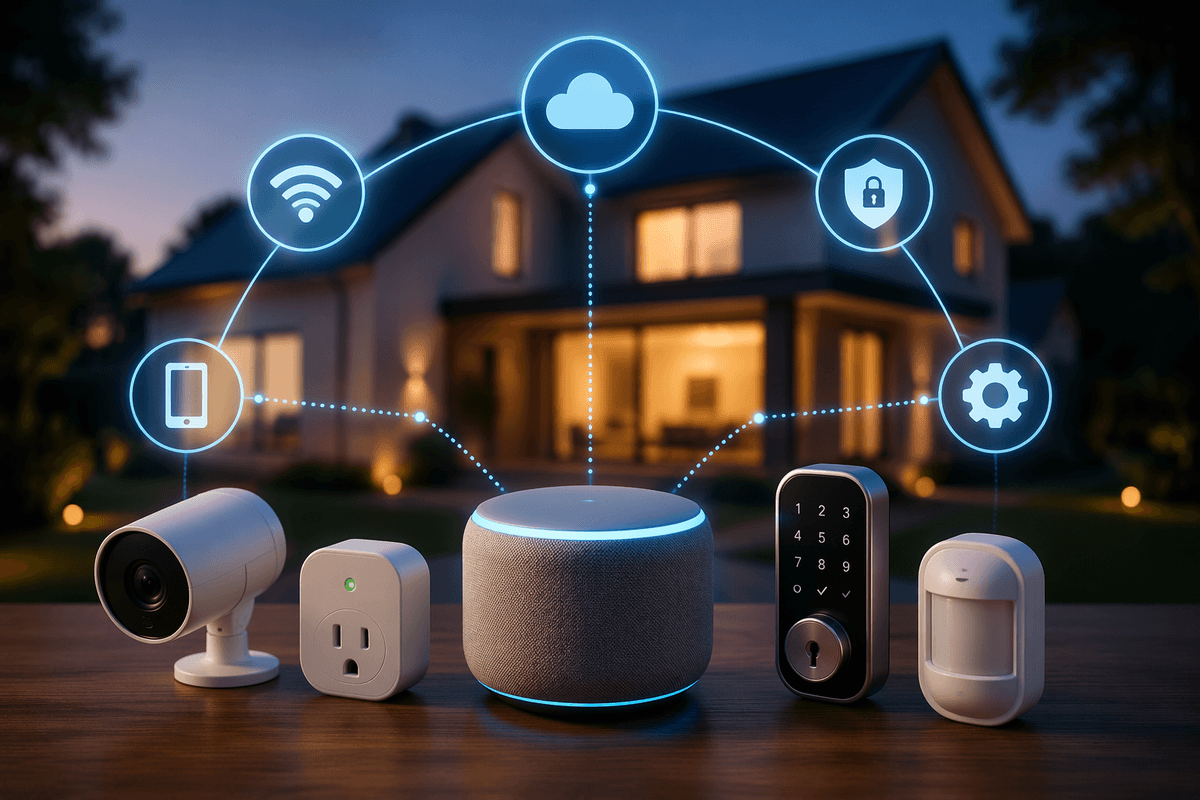
A typical IoT setup is really three products you have to live with: the device in the room, the network it rides on, and the cloud service behind the app. The device is the sensor or actuator (plug, lock, camera) plus firmware that decides what it can do locally. The network is usually Wi‑Fi, but could be Bluetooth for onboarding, or Zigbee/Thread via a hub, and it determines range, reliability, and how painful troubleshooting will be.
The cloud is where accounts, remote access, push notifications, video storage, and many “smart” features often run—even if the device sits a few feet away. That’s why an internet outage can break routines, and why two phones can see different things if they’re signed into different accounts. The trade-off is convenience versus dependency: cloud features add polish, but they also add subscriptions, service outages, and long-term risk if the vendor changes terms or sunsets support.
Choosing devices without getting trapped by ecosystems and standards
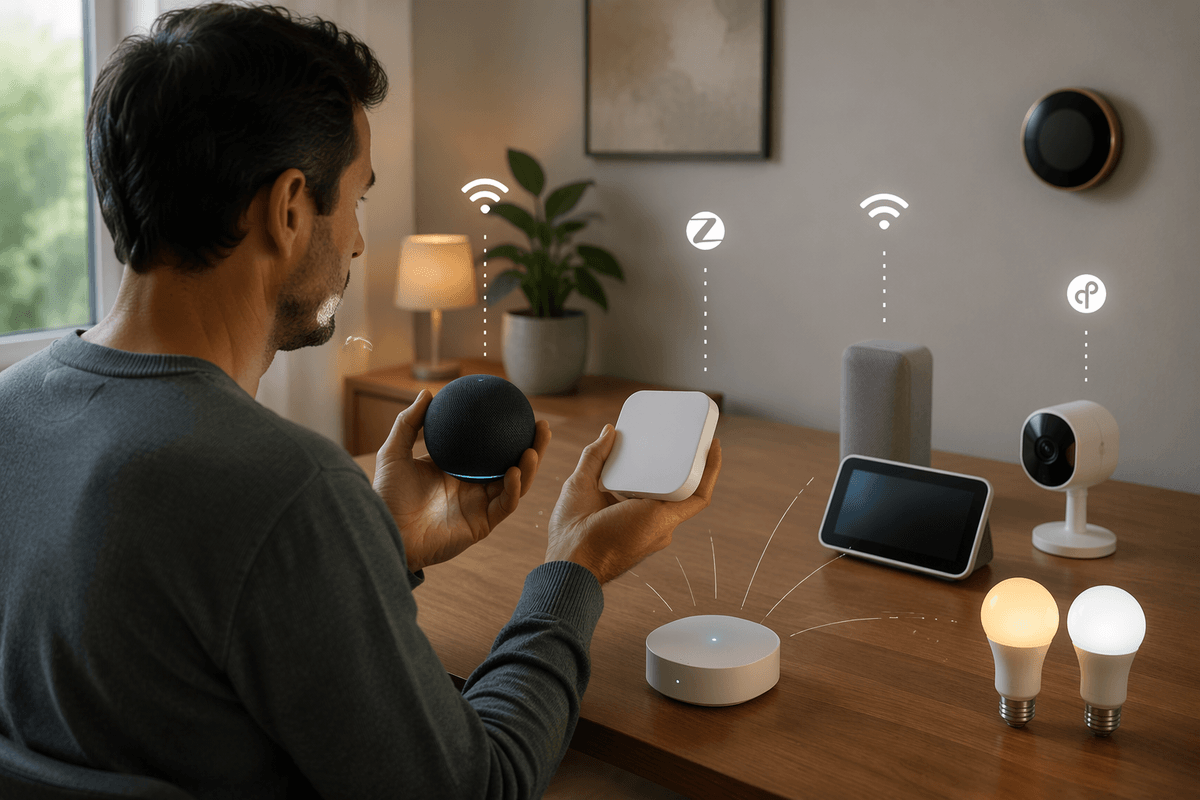
You’ve probably seen the fork in the road: buy everything from one brand so it “just works,” or mix brands to avoid lock-in. The first path reduces setup drama because one app and one account usually means fewer mismatched permissions and fewer surprises after updates. The second path can be cheaper and more flexible, but it pushes complexity onto you: more apps, more logins, and more chances that a feature only works inside one vendor’s ecosystem.
Before you buy, decide what you want to be “central.” If you plan to use a hub or platform (Apple Home, Google Home, Alexa, Home Assistant), prioritize devices that support it directly and keep key functions usable without the vendor’s cloud. Pay attention to radios and standards—Wi‑Fi devices burden your router, while Zigbee/Thread often need a hub but can be steadier at scale. “Works with” badges aren’t enough; check whether the exact feature you care about (dimming, person detection, local control) is exposed, and budget for the hidden costs like hubs, subscriptions, and replacement when a vendor changes direction.
First-time setup that doesn’t become permanent troubleshooting
The most common “mystery problems” are created on day one: a rushed setup, a half-finished firmware update, or an account you’ll forget exists. Start by doing onboarding when you can watch it for 15 minutes—plugged into power, phone on the same Wi‑Fi you’ll use long term, and with Bluetooth/location permissions set intentionally (not “Allow forever” by habit). Let the device fully update before you mount it, hide it behind furniture, or tie it into automations. A camera that’s flaky on the table will not get better on the edge of your network.
Make setup reproducible. Create a simple naming rule (room + device + purpose), store recovery codes and subscription receipts, and note which account “owns” each device so you don’t end up with split households where one phone can’t manage settings. If the device supports 2.4 GHz only, put it on 2.4 GHz from the start instead of relying on band-steering guesses. The small cost is time and documentation upfront; the payoff is fewer factory resets later.
Your network is the product: Wi‑Fi, VLANs, and coverage
The pattern most people run into is “the device is fine, the app is fine, but it keeps dropping.” That’s usually the network. Many IoT devices have weaker radios than your phone and stick to 2.4 GHz, so a router that feels fast for laptops can still be unreliable for sensors at the edge of coverage. Add a dozen Wi‑Fi gadgets and you also add more DHCP leases, more broadcast chatter, and more chances a cheap ISP router runs out of headroom. Practical fixes are boring but effective: place access points for coverage (not speed), prefer wired backhaul for mesh when you can, and test in the final mounting spot before you drill holes.
Segmentation is the other reliability lever that doubles as damage control. Put IoT on its own SSID mapped to a VLAN (or at least a dedicated guest-style network) so a compromised plug can’t easily reach laptops, file shares, or point-of-sale systems. The trade-off is complexity: VLANs can break device discovery and casting, and some hubs need access across networks. Plan for that up front, or you’ll “temporarily” flatten the network and never revisit it.
Security and privacy decisions you can’t postpone
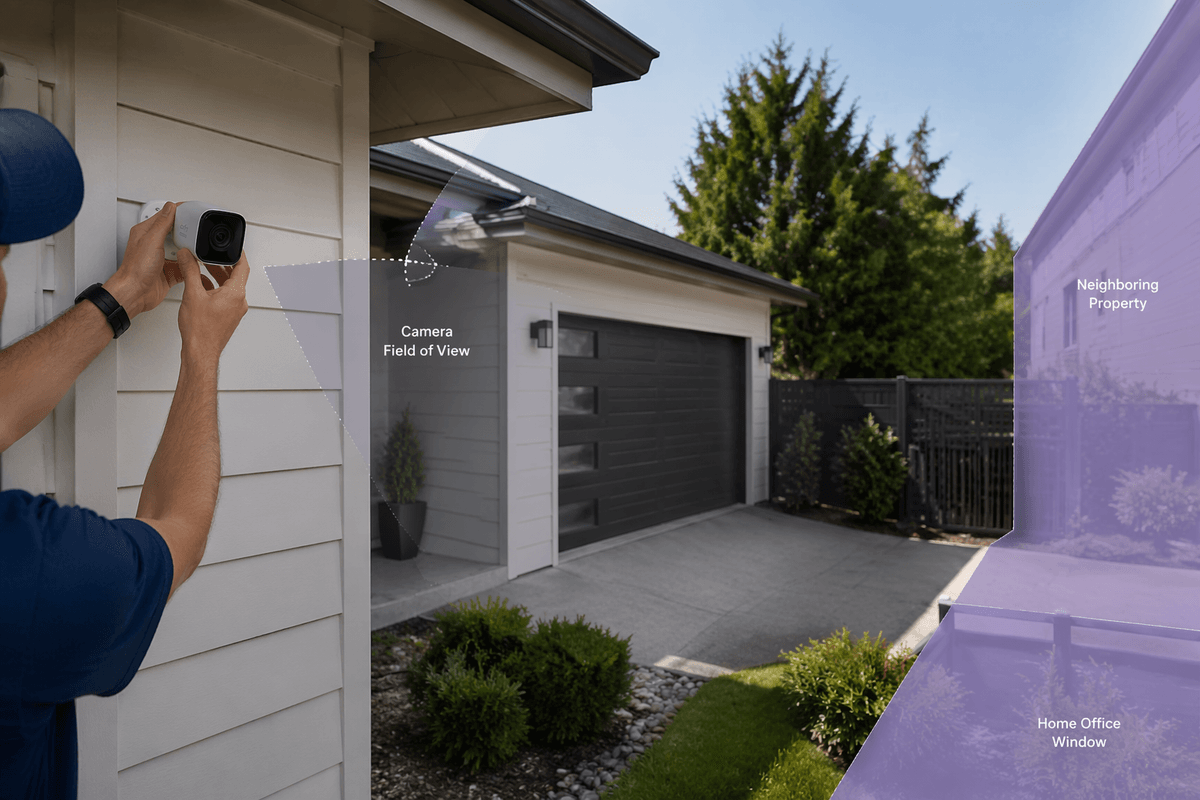
Most IoT security failures start as convenience choices: reusing a simple password, skipping multi-factor authentication, leaving default admin access on a hub, or approving every permission the app requests just to finish setup. Treat each device like a small computer on your network. Update firmware early (and then periodically), disable features you won’t use (remote access, microphones, UPnP), and separate “owner” accounts from day-to-day user access so one compromised phone doesn’t become full control of the system.
Privacy decisions are harder to reverse because they shape what data gets collected in the first place. Before you mount a camera, decide what it should never see (neighbor windows, work screens, staff areas) and whether you actually need cloud recording or just local storage and alerts. Check retention settings, sharing settings, and whether video or sensor history can be exported or deleted. The constraint is real: tighter privacy often costs money (local NVRs, better hubs) or convenience (fewer “AI” features, less remote control). Picking that trade-off intentionally beats discovering it after a breach or an awkward incident.
Making IoT useful: automations, data, and long-term maintenance
The moment IoT starts paying you back is when you stop thinking in devices and start thinking in outcomes: “lights off when the office closes,” “get a leak alert before damage,” “unlock only during business hours.” Keep automations simple and observable. Prefer triggers you can trust (time, door contact, occupancy) over fragile ones (phone geofencing, voice-only routines), and add a manual fallback so one failed rule doesn’t strand you. When possible, run critical automations locally via a hub, not in a cloud that can lag or go down.
Data is useful only if you can act on it. Limit notifications to a few high-signal events, and review history monthly: battery trends, device offline counts, and Wi‑Fi RSSI where available. Maintenance is the unglamorous cost: firmware updates that change behavior, expiring subscriptions, dead batteries, and replaced routers that break “just working.” Put reminders on a calendar, keep a short device inventory, and test one automation end-to-end after major changes.
A practical way to grow from one device to a reliable system
The first device is your pilot. Pick something low-risk (a plug, a contact sensor, a single camera) and use it to prove your “operating model”: where it lives on the network, how it’s updated, who owns the account, and what happens when Wi‑Fi or power drops. If you can’t explain how to reset it, re-pair it, and recover access without guesswork, don’t buy five more.
Grow in small batches: add one category at a time, then stabilize. After each batch, confirm coverage in the final locations, tighten permissions, and check that automations still work locally when the internet is flaky. The real constraint is attention: every new vendor, hub, or subscription is another long-term maintenance obligation, so standardize where it meaningfully reduces failure modes.