Why game loading still feels slow on a fast PC
You can have a high-end CPU, plenty of RAM, and a fast NVMe SSD and still sit through long “loading” screens because a lot of loading work isn’t just reading files. Many games pull thousands of small assets (textures, meshes, audio), then decompress and reorganize them on the CPU before the GPU can use them. That CPU-heavy unpacking step can become the real bottleneck, especially in big open-world titles that stream data constantly.
Where the game is installed also matters. If it’s on a SATA SSD or (worse) a hard drive, storage latency and queue depth limit how quickly the game can fetch lots of tiny files. Even on NVMe, background tasks, antivirus scanning, and a nearly-full drive can add friction. The practical constraint is simple: you can’t “toggle” your way out of a game’s loading design, but you can remove the obvious bottlenecks so new tech like DirectStorage has a chance to help.
DirectStorage in plain terms: what it changes and why
Think of traditional loading as the CPU acting like a busy shipping clerk: it requests lots of little packages from the SSD, opens them, decompresses them, and then hands the usable parts to the GPU. Even with a fast NVMe drive, that “open and unpack” stage can chew CPU time and create stutters when a game streams new areas.
DirectStorage changes the path. It lets the game submit many more storage requests efficiently and, in supported games, shift more of the decompression work off the CPU so assets can move from an NVMe drive toward the GPU with less overhead. The “why” is simple: less CPU babysitting means faster asset delivery and fewer loading hiccups when a game is designed to stream constantly.
The catch is cost and compatibility: it only helps when the game is built to use it, and the biggest gains usually assume NVMe storage plus a modern GPU with current drivers.
Do you actually have the right hardware to benefit?
The most common situation is having a fast GPU and CPU, but the game is installed on the “wrong” drive. DirectStorage is designed around NVMe SSD behavior (high parallel I/O and low latency), so if your game lives on a SATA SSD, it may still run fine, but you’re unlikely to see the kind of loading improvements people talk about. You can check quickly in Windows 11: Task Manager → Performance will label a drive as “NVMe” or “SSD,” and the game needs to be on the NVMe one to matter.
GPU and drivers matter because DirectStorage’s best-case path leans on modern graphics APIs and up-to-date driver support. Practically, if you’re on a recent NVIDIA RTX, AMD Radeon RX 6000/7000-series, or Intel Arc card with current drivers, you’re in the safe zone. If you’re on an older GPU, the game may still use parts of DirectStorage, but the CPU will often stay the bottleneck, so the upgrade cost might not match the real-world gain.
Get Windows and drivers ready (the part most people skip)
It’s easy to focus on the SSD and forget the boring part: Windows and drivers. If you’re on Windows 11 and you let Windows Update run regularly, you’re usually close, but “close” still leaves performance on the table when a game leans on newer storage and graphics paths. Start with Settings → Windows Update and install everything pending, then reboot. Don’t skip optional driver updates if your system vendor uses them for storage controllers or chipset fixes.
Then do GPU and chipset/storage drivers the straightforward way: install the latest NVIDIA/AMD/Intel graphics driver from the vendor, and the latest chipset package from your motherboard (or laptop) manufacturer. This isn’t about chasing FPS; it’s about stability and the right feature support. The practical cost is time: driver updates can break overlays, reset graphics settings, or trigger shader recompiles, so do it before a long gaming session, not five minutes before you play.
The biggest real-world “enable” step: put games on the NVMe
You can’t force a game to use DirectStorage, but you can control the one thing that decides whether it even has a shot: where the game is installed. If the title is sitting on a SATA SSD or a big HDD “storage” drive, moving it to your NVMe is the closest thing to a real-world enable switch. It removes the small-file latency penalty and gives the game the high-queue, low-latency behavior DirectStorage is designed around.
The practical move is simple: in Steam, use Settings → Storage to add an NVMe library folder, then right-click a game → Properties → Installed Files → Move install folder. Xbox app and Battle.net have similar “change drive” options. Plan for the cost: NVMe space fills fast, and leaving 10–20% free helps sustained performance and avoids annoying “disk is full” patches. If your NVMe is nearly packed, prioritize open-world and streaming-heavy games first.
How to tell if a game is using DirectStorage
You’ll usually notice the DirectStorage question the same way you notice a bad install drive: one game loads and streams worlds smoothly, another hammers the CPU and pauses when you turn a corner. The tricky part is there isn’t a universal Windows 11 “DirectStorage: On” indicator for every title, because it’s implemented per game engine and can be used in different ways.
The most reliable check is the boring one: look for explicit mention in the game’s system requirements, patch notes, or a developer post. If they don’t say it, assume it’s not there. If they do say it, make sure you’re testing the right setup: the game is installed on the NVMe, you’re running Windows 11, and your GPU driver is current.
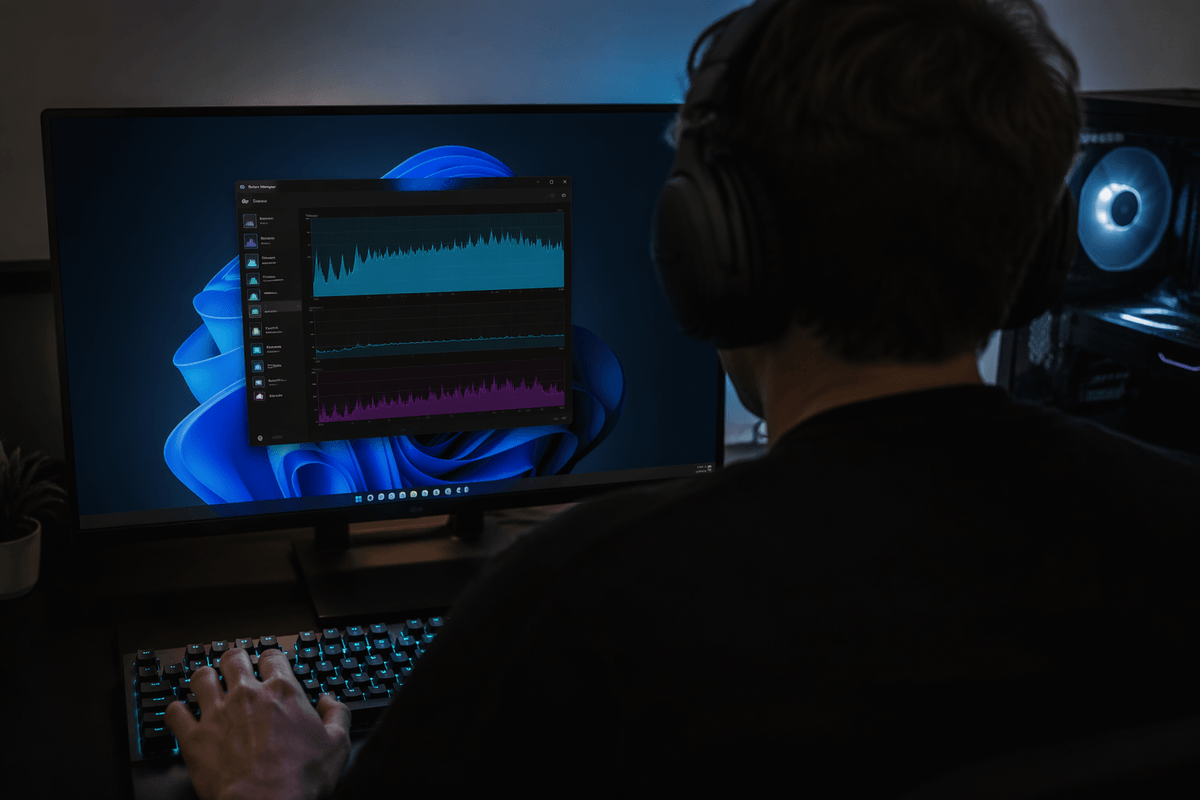
For a sanity check while playing, open Task Manager and watch CPU and disk behavior during a load. If loads are still CPU-pegged with only modest NVMe activity, you’re likely seeing traditional decompression. It’s not a perfect test, but it keeps expectations realistic without chasing phantom “toggles.”
Troubleshooting and setting realistic expectations
You’ll run into the same pattern again and again: you did “everything right,” and the game still loads like it always did. The first reality check is that DirectStorage is game-dependent, and plenty of titles simply aren’t built around it yet. A supported setup doesn’t guarantee dramatic results, either; if the game’s bottleneck is shader compilation, CPU simulation, or network handshakes, storage improvements won’t make that part disappear.
When loads feel worse than expected, start with basics you can control. Confirm the game is actually on the NVMe (launchers can silently install DLC or “high-res texture packs” to another drive). Make sure you’re not testing right after a driver update, when shader caches may rebuild and make first loads look unusually slow. If you see inconsistent stutters during streaming, try temporarily disabling third-party overlays and adding the game folder to your antivirus exclusions list—real-time scanning can punish the “lots of small files” behavior that modern games still use. Also check free space on the NVMe; once it’s nearly full, write-heavy patches and background maintenance can drag down responsiveness.
The practical expectation to keep: NVMe placement and clean drivers usually deliver the most dependable improvement, while DirectStorage is a bonus when a specific game is designed for it. If a title doesn’t claim support, treat “faster loads” as an upgrade benefit, not a promise.
A simple checklist for faster loads going forward
Before you blame DirectStorage, run this quick checklist: confirm the game is installed on your NVMe (not just the launcher), keep 10–20% of that NVMe free, and make sure Windows 11 is fully updated with a reboot after updates. Install current GPU drivers from NVIDIA/AMD/Intel and the latest chipset/storage drivers from your PC or motherboard maker, then expect one “slow” first load while shaders/cache rebuild. If loads still feel CPU-bound, temporarily disable overlays and add the game folder to antivirus exclusions to avoid small-file scanning stalls. Finally, only expect DirectStorage gains when the game explicitly claims support.