A tiny PC you plug into a screen: why now?
You’ve probably had the moment: a spare TV in the bedroom, a monitor at work, or a hotel screen on a trip—and no simple way to make it feel like a real computer without dragging along a laptop or setting up a bulky desktop. Computer sticks exist for that gap: they’re small enough to live in a drawer, cheap enough to justify as a “just in case” PC, and simple enough to move between screens.
They’re showing up more now because everyday tasks have shifted toward the browser and streaming apps, and because TVs and monitors with HDMI are everywhere. A stick PC can handle video playback, email, documents, and light web work without needing a dedicated desk setup. The catch is that the same tiny size that makes them convenient also limits performance, storage, and ports—so they work best when your expectations are realistic.
What a computer stick is (and what it isn’t)
A computer stick is a full PC shrunk into something close to a chunky USB drive, designed to plug into an HDMI port and run a normal operating system (usually Windows, sometimes Linux). It turns a TV or monitor into a basic desktop setup when you add power and some kind of input—typically Bluetooth or USB keyboard and mouse, and Wi‑Fi for internet. Think of it as “the computer” part of a desktop, minus the built-in screen and battery.
What it isn’t: a streaming dongle like a Roku/Fire TV, which is built mainly for apps and remote control simplicity. It also isn’t a laptop replacement for heavy multitasking, creative work, or gaming. Most stick PCs use low-power processors, limited cooling, and modest storage, so they’re better for streaming, email, light documents, simple travel setups, or always-on signage than anything that needs sustained speed.
Inside the stick: components that shape real performance
You’ll feel the difference between “fine for Netflix and email” and “painful for daily use” based on a few parts you can’t see. The processor is the big one: many sticks use low-power Intel Atom/Celeron-class chips that do okay for one or two light tasks, then bog down with lots of browser tabs, video calls, or Windows updates running in the background. RAM is the next limiter. 4GB can work for streaming and basic docs, but 8GB makes Windows far less cramped if you multitask.
Storage matters more than shoppers expect. Some sticks use slower eMMC storage (like a budget tablet), which can make app launches and updates feel sluggish even if the CPU is “good enough.” A model with true SSD storage (or at least faster eMMC) tends to feel snappier day to day. Heat is the quiet constraint: tiny cooling means sustained loads can throttle performance, so long downloads, big updates, or extended video conferencing may slow down over time.
Where computer sticks fit best in everyday life
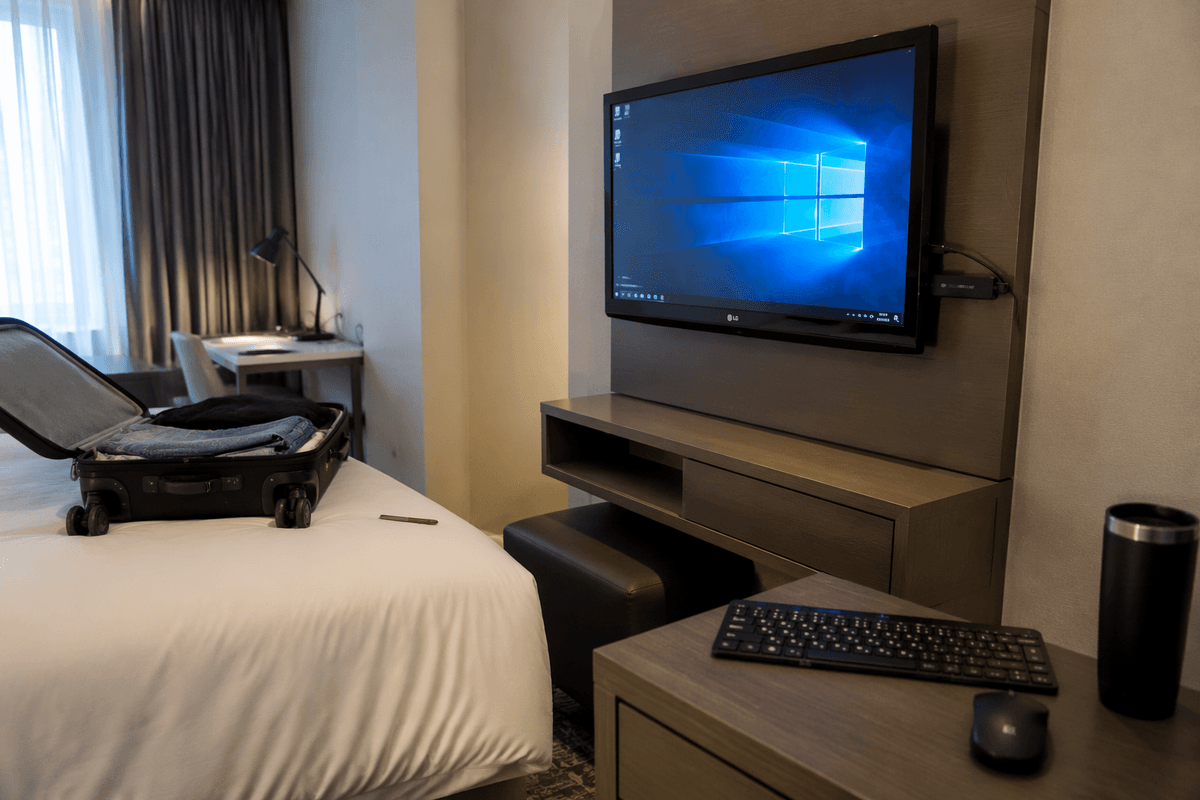
A lot of people end up using a computer stick the way they use a “spare key”: not every day, but often enough that it earns its spot. A bedroom TV can become a simple streaming-and-browsing station without buying a whole laptop. A home office monitor can double as a family “quick check” PC for email, printing labels, or filling out a form. In a pinch, it also works as a travel computer if you’re okay treating the hotel TV as your monitor and using a compact keyboard and mouse.
They’re also a natural fit for always-on, low-interaction jobs like digital signage, a rotating photo display, a basic dashboard, or a shared calendar on a wall screen. The practical constraint is that these setups often need more planning than the size suggests: you may need a short HDMI extender for clearance, steady power, and a way to keep Wi‑Fi stable—because once it’s tucked behind a TV, fixing a flaky connection or pairing issue is more annoying than on a laptop.
The tradeoffs: convenience vs laptop, mini PC, or tablet
Picture the choice in a simple way: do you want a computer you can throw in a bag, or a computer you can actually use comfortably for hours? A stick PC wins on “always with you” convenience. It can live behind a TV, move between rooms, or ride in luggage without feeling like an extra device. A laptop still wins when you need a screen, battery, webcam, and decent keyboard built in—especially for classes, remote work, or anything involving video calls.
Against a mini PC, the stick’s advantage is fewer cables and less space, but you usually give up speed and stability. Mini PCs tend to offer better cooling, more ports, and easier storage upgrades, which matters when Windows updates chew through space or when you want to plug in Ethernet, multiple USB accessories, or a second display. A tablet can feel smoother for casual browsing and apps, but it’s not the same as having a full desktop OS for “real” websites, file management, and peripherals. The hidden cost with sticks is often accessories: a keyboard, mouse, and sometimes a USB hub or HDMI extender.
Setup realities: ports, power, and compatibility gotchas
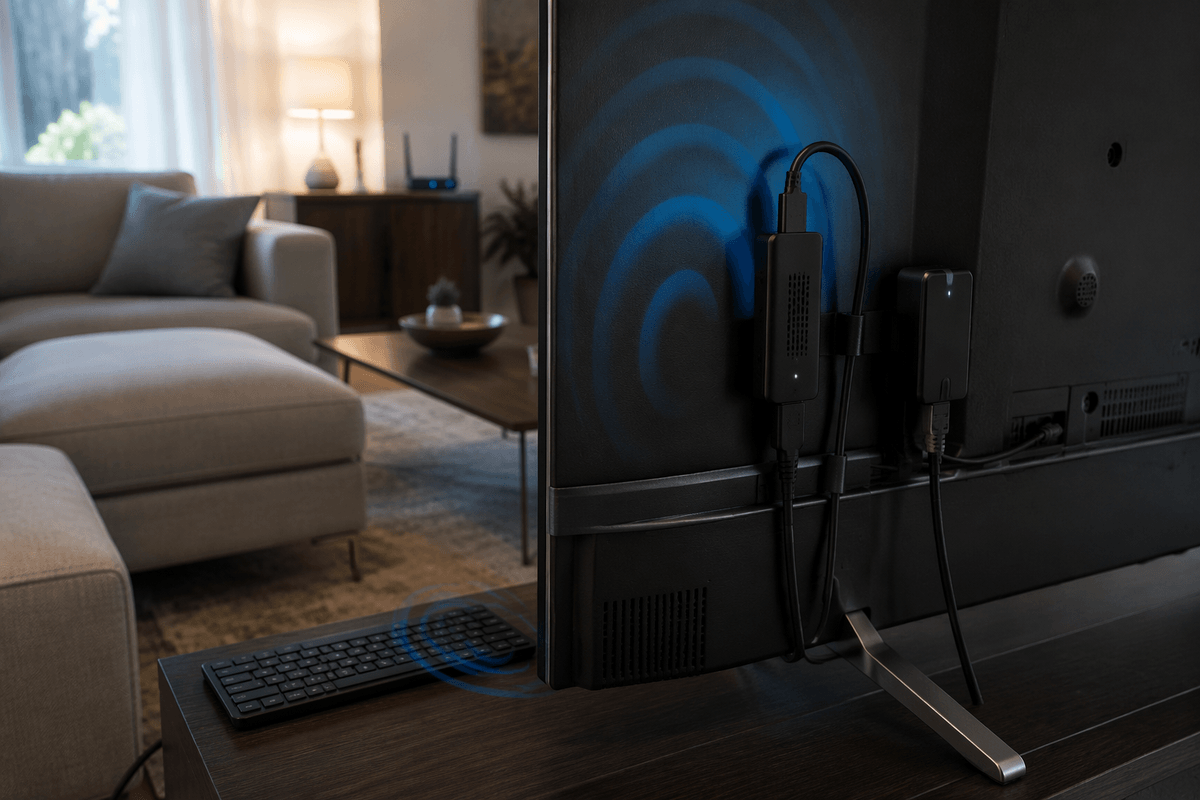
You plug it into HDMI, but the first snag is physical: many TVs have cramped ports, and the stick can block the neighboring HDMI. A short HDMI extender cable often fixes clearance and reduces stress on the port, but it’s one more item to buy and pack. After that, ports get tight fast. A single USB-A might be all you have, so if you need a keyboard/mouse receiver plus a flash drive, you’re shopping for a powered USB hub.
Power is the other common surprise. Some sticks can’t reliably run from a TV’s USB port, or they’ll reboot under load, so plan on using the included wall adapter and having an outlet nearby. Compatibility issues tend to be boring but real: older TVs can be picky about HDMI handshake or resolution, Wi‑Fi behind a TV can be weaker than you expect, and Bluetooth peripherals can be finicky until drivers and Windows updates finish—often when storage space is already tight.
How to choose a good one without overspending
The fastest way to avoid wasting money is to start with your “worst day” use case, not your best. If it’s mostly streaming and light browsing, a basic processor is fine, but aim for 8GB of RAM so Windows doesn’t feel cramped after a few browser tabs and background updates. For storage, 128GB is a safer floor than 32–64GB because updates and apps will consume space quickly, and slow eMMC storage can make an otherwise “okay” stick feel laggy.
Look at ports as a budget line item. If the stick has only one USB-A, assume you’ll need a powered USB hub; if your TV’s HDMI ports are tight, assume you’ll need a short HDMI extender. Built-in Wi‑Fi is usually enough, but if you need stable video calls or signage, prioritize a model with Ethernet (or budget for a USB Ethernet adapter). The practical reality: a slightly pricier stick that avoids extra adapters often costs less than a bargain model that forces you to buy accessories to make it usable.
Why popularity is rising—and when it’s a smart buy
You’re seeing more stick PCs because they match how many people actually compute now: streaming, browser-based work, and “good enough” Windows apps on screens you already own. They also solve a very specific annoyance—needing a real desktop environment for a form, a download, or a quick task—without dedicating space to a full tower or paying laptop money. The downside is that the cheap end hasn’t magically improved: limited ports, weak cooling, and tight storage still make them feel fragile when updates pile up.
It’s a smart buy when you want a low-cost TV PC, a travel “backup computer,” or a simple signage box and you’re comfortable adding a hub/keyboard and doing occasional troubleshooting. If you need quiet reliability for daily work, frequent video calls, or lots of peripherals, a small mini PC usually costs a bit more but wastes far less time.