What Apple TV+ is (and what it isn’t)
Apple TV+ is Apple’s paid streaming service for on-demand shows and movies made or licensed for Apple TV+. You watch it inside the Apple TV app (or on the web), which is where most confusion starts: the Apple TV app is a hub that can also show content you buy or rent, plus other streaming channels you might subscribe to. Apple TV+ is only one “tile” inside that hub.
It also isn’t the Apple TV device. You don’t need an Apple TV box to watch, but you do need a subscription and a sign-in (usually your Apple ID). The practical catch is that the Apple TV app looks a little different across devices, so the Apple TV+ tab or channel may be in a slightly different place.
Ways to sign up: free trials, bundles, and monthly plans
The easiest way to start is inside the Apple TV app: open it, select the Apple TV+ area, and choose “Try Free” or “Subscribe.” You’ll confirm with the Apple ID you’re signed into on that device (or you’ll be asked to sign in). If you recently bought an iPhone, iPad, Mac, or Apple TV, you may be offered a limited-time Apple TV+ trial tied to that purchase—those offers have deadlines, so it’s worth checking your Apple ID’s subscriptions screen soon after you set up the device.
You can also get Apple TV+ through Apple One bundles (useful if you already pay for iCloud+ storage, Apple Music, or Apple Arcade). Otherwise, it’s a straightforward monthly plan. The practical gotcha: if you subscribe on a non-Apple device or through a third party, billing and canceling may happen there, not in Apple’s settings.
Set it up on the devices you actually use
You’ll get the cleanest setup if you start on the device you watch most. On iPhone or iPad, open the Apple TV app (download it from the App Store if you deleted it), sign in with your Apple ID, then tap the Apple TV+ area to start watching. On a Mac, open the TV app, sign in, and look for Apple TV+ in the sidebar. On an Apple TV box, the Apple TV app is usually preinstalled; sign in once and it’s ready.
For smart TVs and streaming sticks (Roku, Fire TV, Google TV), install the Apple TV app from the device’s app store and sign in. Some devices use a code-on-screen sign-in, which is faster than typing passwords with a remote. If you’re on a work computer or shared device, use the web player and remember to sign out afterward. The real constraint is older TVs: some models simply don’t support the Apple TV app, so you may need a streaming stick.
Sign-in and sharing: one account, many screens
You’ll usually sign in to Apple TV+ with your Apple ID. If you’re already signed into iCloud on an iPhone, iPad, Mac, or Apple TV box, the Apple TV app often picks that up automatically. On a smart TV or streaming stick, expect a “sign in on this TV” screen with a code—use your phone to enter the code and avoid typing a long password with a remote. If you’re stuck in a loop, confirm you’re using the same Apple ID you subscribed with (Settings > your name > Subscriptions on Apple devices) and that the Apple TV app isn’t signed into a different account.
For sharing, Family Sharing is the clean option: one person pays, up to five family members use their own Apple IDs, and watch history stays separate in most places. The limitation is that it takes a few minutes to set up, and some non-Apple devices may not show every personal row the same way, so “Up Next” can look slightly different across screens.
Find something good fast: search, lists, and recommendations
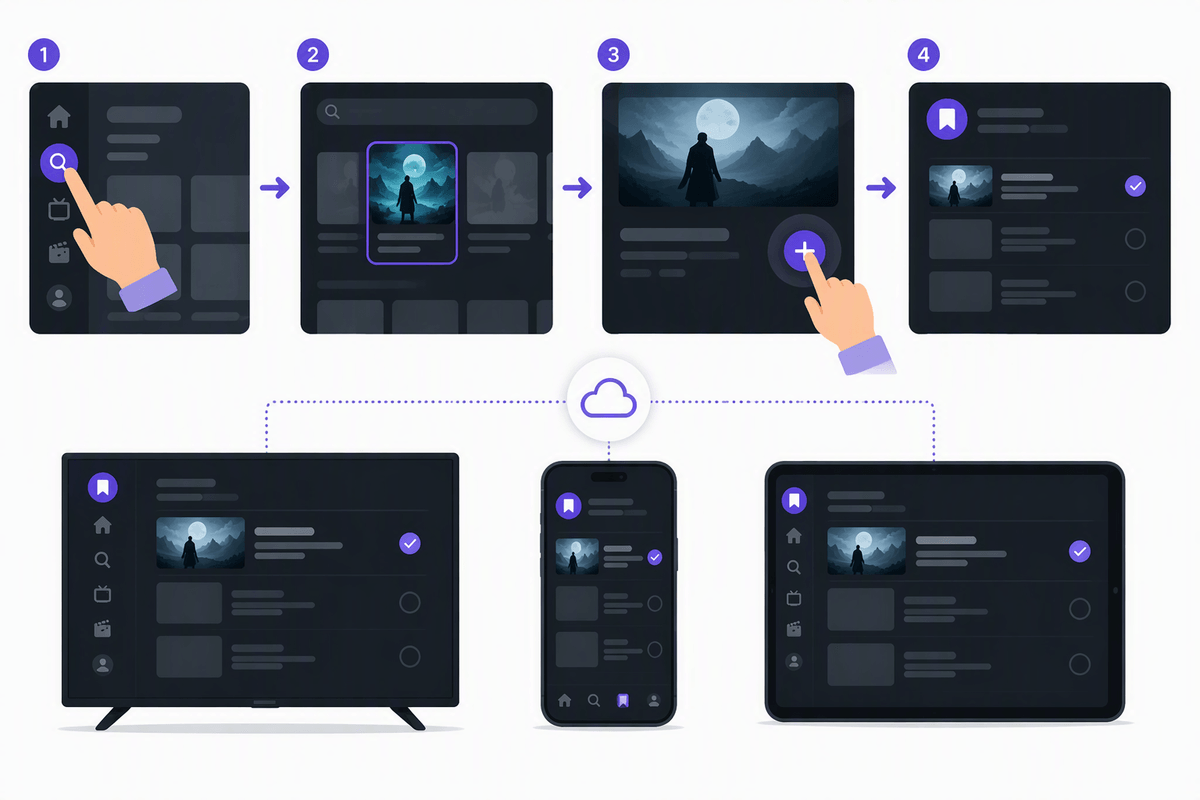
You open the Apple TV app and the home screen can feel busy, so use the fastest paths on purpose. If you already have a title in mind, go straight to Search and type it—this skips the hub’s store and channel clutter. When you find something, add it to your Watchlist (the “+” button) so you don’t have to hunt for it again across devices.
For quick picking, lean on Apple TV+ collections like “New Releases,” “Popular,” and genre rows inside the Apple TV+ area, not the general Store tab. “Up Next” is your best shortcut for continuing a series, but it’s only as good as your watch history on that Apple ID. A practical limitation: recommendations can take a bit to improve, and on some smart TVs you may see fewer personalized rows than on an iPhone or Apple TV box.
Get the best playback: downloads, data use, and picture quality
You notice playback problems fastest when you change locations: a show looks softer on cellular, or it buffers when everyone’s on the home Wi‑Fi. If you plan to watch away from a strong connection, download episodes ahead of time on iPhone or iPad (and on Mac in the TV app). Downloads cost storage, so check your free space first, and remember they don’t help on most smart TVs or streaming sticks.
To avoid surprise data use, set your phone to use Wi‑Fi for streaming when possible and keep an eye on any “cellular data” or “high quality” toggles in the TV app settings on your device. Picture quality is mostly automatic, but it depends on your internet speed and your TV setup. For the best results on a 4K TV, make sure the HDMI input is set to the best format your TV supports, and expect higher quality to use more bandwidth. If audio is out of sync or video stutters, a quick fix is restarting the app/device and turning off any “smart DNS” temporarily.
Canceling, renewing, and troubleshooting common issues
You usually discover you need to manage Apple TV+ when a trial ends, a card changes, or a family member can’t watch. If you subscribed through Apple, cancel (or renew) on an iPhone/iPad/Mac in Settings (or System Settings) > your name > Subscriptions, or on Apple TV in Settings > Users and Accounts > Subscriptions. If you signed up through Roku, Amazon, Google, or your cable provider, you must cancel there—Apple’s Subscriptions screen won’t show the right controls.
When something “should work” but doesn’t, start with three checks: you’re signed into the same Apple ID that pays, the subscription is active, and the Apple TV app is updated. If Apple TV+ shows as locked, sign out/in, restart the device, and try “Restore Purchases” where it appears. On smart TVs, reinstalling the Apple TV app can fix stale sign-in tokens, but it costs time because you’ll need to log back in and set up your rows again.
A simple “start watching today” checklist
Pick the device you’ll watch on most and open (or install) the Apple TV app. Confirm you’re signed into the Apple ID that will pay (or that already has a trial/bundle), then start the Apple TV+ trial or subscription from the Apple TV+ area. On a TV or streaming stick, use the on-screen code sign-in so you don’t type passwords with a remote. Add 2–3 shows to Watchlist so you can find them anywhere, then play one episode to confirm audio/video look right. If you’ll travel, download episodes on iPhone/iPad (storage is the cost). Turn on Family Sharing if others will watch.