Why your Xbox One keeps turning on by itself
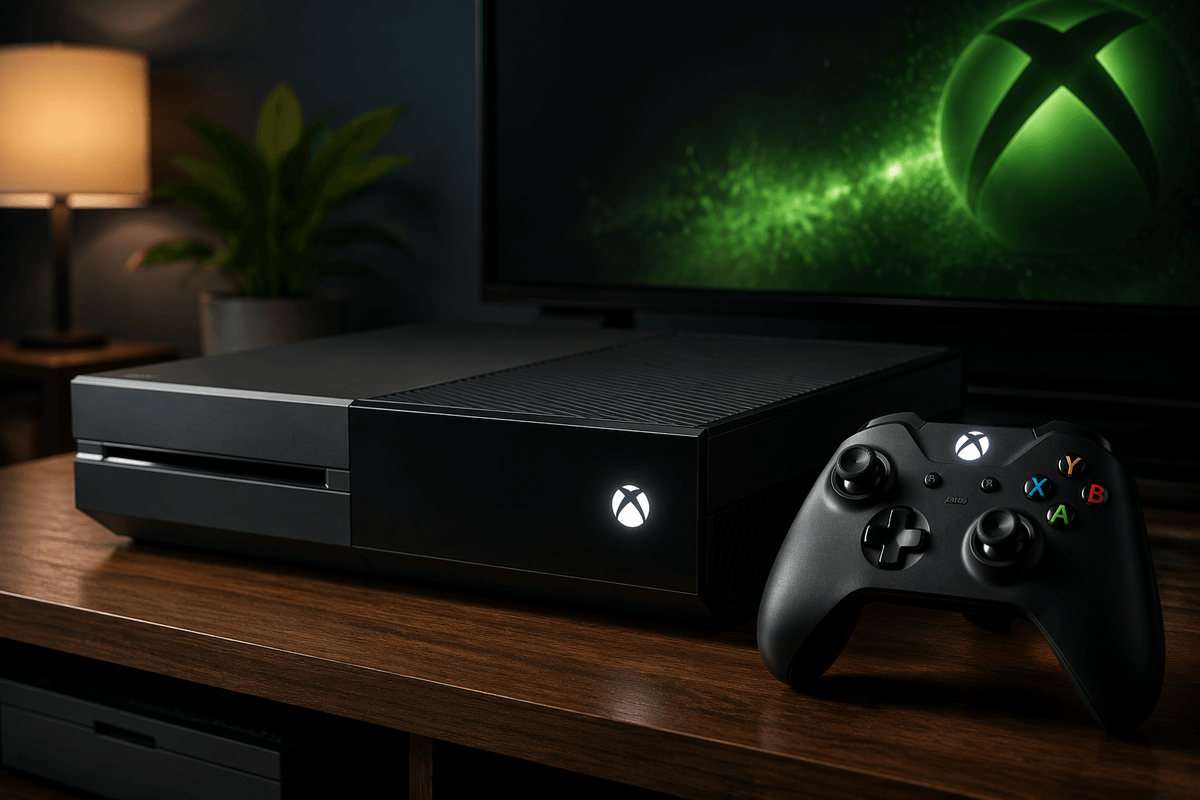
You’re not imagining it: an Xbox One can power up without anyone touching the console. Most “mystery” turn-ons come from normal wake triggers firing at the wrong time—like a controller button being pressed in a drawer, a headset adapter or USB device sending a wake signal, or the console doing background maintenance and updates in certain power modes. Another common cause is your TV or receiver waking and then waking the Xbox through HDMI device control (often called CEC). Less often, it’s the console itself: a dusty touch-power sensor, a sticky eject mechanism, or unstable power from a strip.
The key is that the fix depends on which trigger is doing it. If you disable everything at once, you can stop the behavior but also lose conveniences like controller wake and TV auto-switching. The fastest path is to confirm it’s a true power-up, then isolate triggers in a simple order—from controllers and HDMI settings to power mode—before you assume the console has a hardware fault.
Confirm it’s a real power-up, not a wake screen
Start by making sure you’re dealing with a full power-up, not the console briefly waking the display. If you hear the startup chime, see the Xbox logo animation, and the power button stays lit solid for more than a minute, that’s a real start. If the TV flashes to a different HDMI input and then goes back, or you only see a quick “No signal” change, the Xbox may not be powering up at all—your TV or receiver may just be cycling inputs.
When it “turns on,” note two things before changing settings: was a controller light on or vibrating, and did the TV/receiver also wake at the same time? Then check the on-screen Power menu: if it shows “Turn off console,” it’s awake; if you can’t bring up the guide, you’re chasing an HDMI/input issue instead.
Start with the simplest trigger: controllers and peripherals
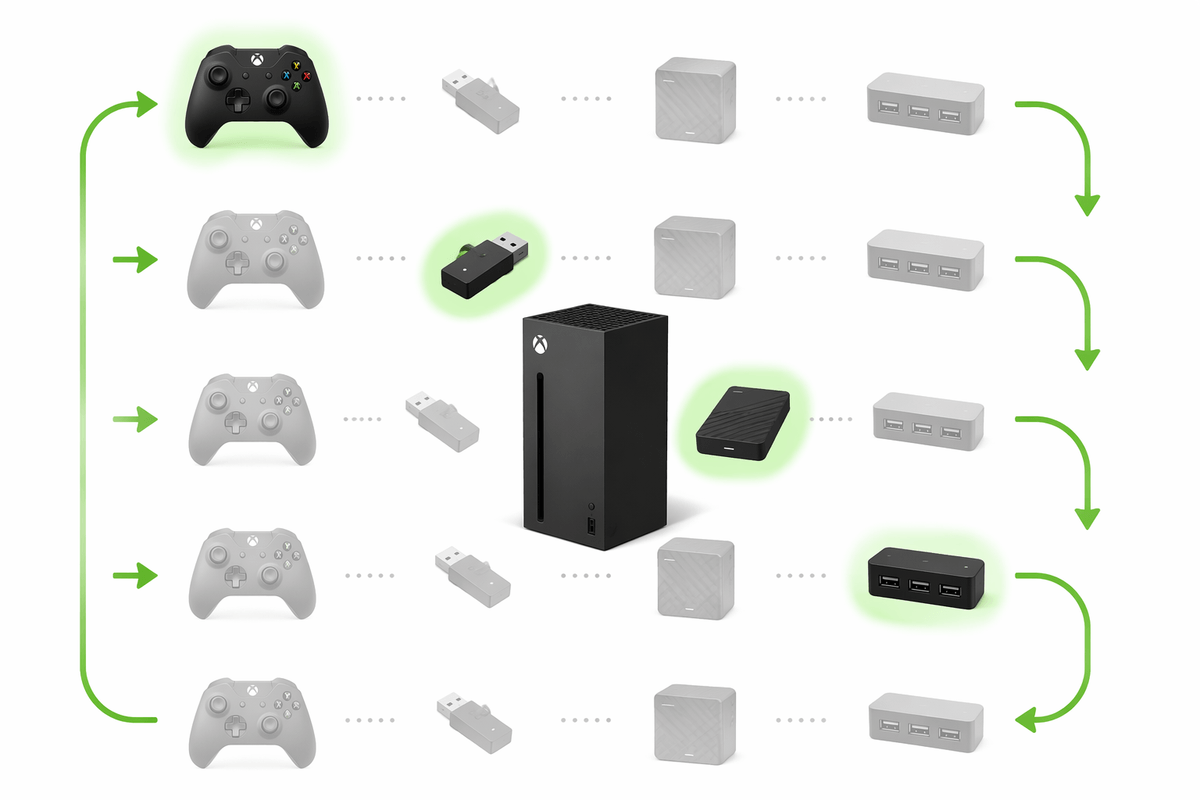
If the console is waking at odd times, treat every controller and accessory like a possible “stuck button.” Pull the batteries from all controllers (or power them fully down), then leave the Xbox off for a while. If the random power-ups stop, add controllers back one at a time. Pay attention to a controller that lives in a bag, couch gap, or drawer where the Xbox button can get pressed, or one with a chatpad/headset adapter that’s slightly loose.
Then eliminate USB wake triggers. Unplug anything in the Xbox’s USB ports (external drive, phone cable, charging dock receiver, steering wheel, even a USB hub) and test again. If that fixes it, plug devices back in one-by-one until the culprit shows up. The practical downside: if you use an external drive for games, you’ll need to plan around safely unplugging it and re-seating it later.
HDMI device control: when your TV is waking it
A very common pattern is “the TV turned on, and the Xbox followed.” That’s HDMI device control (often labeled HDMI-CEC) doing what it’s designed to do: one device wakes, and it tells the others to wake or switch inputs. If you have a soundbar or AV receiver in the chain, it can be the one sending the wake command—especially after a brief power flicker, a nightly firmware check, or when you tap the TV remote and it “half wakes” from standby.
To test, turn the Xbox fully off, then turn only the TV on with the TV remote. If the Xbox wakes within a minute, go to Xbox settings and disable HDMI-CEC/device control options like “console turns on other devices” and “other devices can turn on console” (wording varies). If you still want auto input switching, leave “Xbox turns on TV” off but keep “TV switches input” on, or disable CEC on the TV instead. The trade-off is convenience: you may need to switch inputs manually afterward.
Power mode and updates that look like random starts
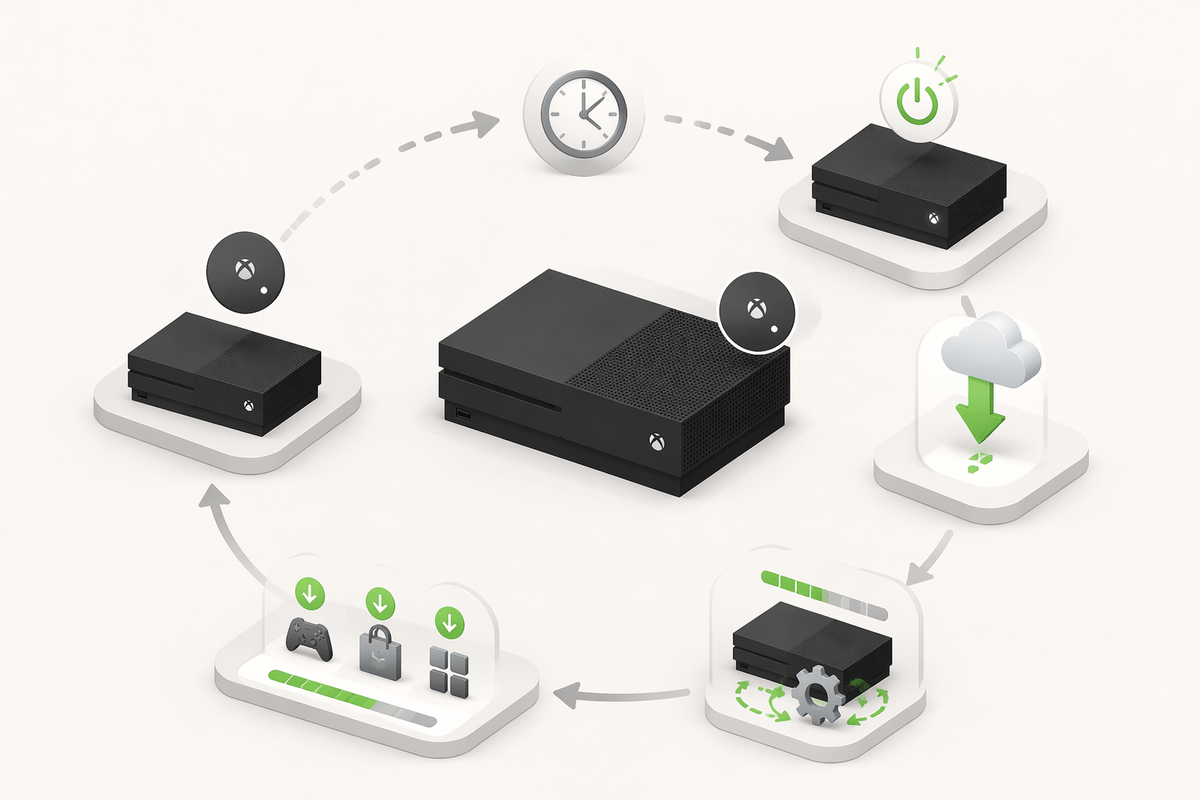
If the Xbox is set to a low-power standby mode (often called “Instant-on” on older models), it can wake itself to do maintenance: system updates, game/app updates, and checking for new content. That wake can look like a random power-up, especially overnight or shortly after you shut it down. The quick tell is timing: if it happens at predictable “quiet” hours, or right after you’ve used the console and turned it off, background tasks are a prime suspect.
Go to Settings > Power options (or General > Power mode & startup) and switch to the full shutdown/energy-saving mode for a few days as a test. Also review update settings and disable “keep my console up to date” temporarily to confirm the trigger. The cost is convenience: startup takes longer, and downloads won’t be ready unless you manually check for updates or leave it on to download.
Front button and eject issues: touch sensor, dust, stuck disc drive
If the wake-ups still happen with controllers unplugged, HDMI control off, and energy-saving mode enabled, start looking at the console itself—especially original Xbox One models with the capacitive touch power button. That touch sensor can misread static, grime, or a slightly conductive film of dust as a “tap.” Power the console down, unplug it, and gently clean the front panel area around the power and eject with a dry microfiber cloth. Avoid sprays; moisture can make false touches worse. Also make sure nothing is brushing the front face (a tight cabinet door, a dangling cable, or a pet hair mat pressed against it).
Disc drives can also trigger odd behavior. If the eject button feels “hair-trigger,” a disc is partially seated, or you hear the drive spin up right before a startup, remove any disc and test for a day. As a practical constraint, cleaning and reseating in a cramped entertainment center is awkward—pull the console out so you’re not scraping the front panel or stressing the cables.
When it’s electrical or hardware—and what to do next
If it still powers up with all controllers unpowered, USB devices unplugged, HDMI-CEC/device control off, and Energy-saving/full shutdown enabled, start treating it like power or hardware. Plug the console directly into a known-good wall outlet (skip surge strips, smart plugs, and “eco” power bars), try a different outlet, and reseat/replace the power brick if you have the older external PSU model. Brief brownouts can look like a button press.
If you can reproduce it by lightly tapping the front panel, or it happens even when unplugged and re-plugged without touching anything else, plan for service: check warranty status, back up what you can, and consider a local repair shop if Microsoft support isn’t economical. At that point, chasing settings usually just wastes time.