Why AirPods Pro 2 feel “fine” until you tweak them
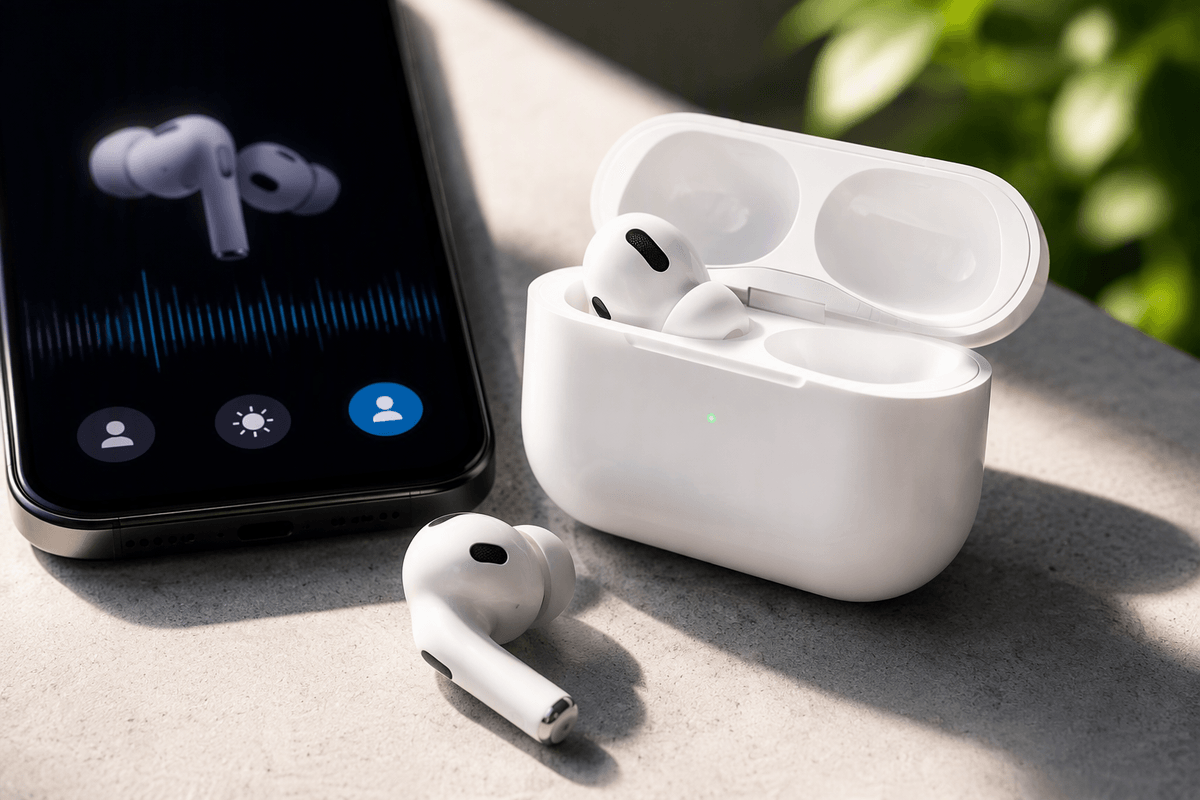
You put AirPods Pro 2 in, they connect fast, and everything basically works. That “fine” feeling is common because the defaults are designed to be safe for most ears and most situations. The catch is that comfort, noise canceling, and even bass depend heavily on how well the tips seal, which can change with small shifts in your ear.
Apple also hides a lot of the best stuff behind quick setup screens and Settings menus you might skip: fit testing, noise control choices per environment, head gestures/press-and-hold behavior, and audio tuning that matches your hearing. None of it is hard, but it does take a few minutes—and if you don’t do it, you can end up with pricey earbuds that never quite feel impressive.
Tip 1: Nail the fit first (it changes everything)
You notice it right away when the fit is slightly off: the bass feels thin, noise canceling sounds “meh,” and one earbud may slowly work loose when you talk or chew. That’s not the AirPods being underwhelming—it’s the seal. A good seal lets the microphones cancel noise accurately and keeps low frequencies from leaking out.
Start with the ear tips. In your iPhone, go to Settings > Bluetooth > (i) next to your AirPods Pro > Ear Tip Fit Test. If it says “Adjust or try a different ear tip,” actually do it—most people need different sizes per ear. Insert the buds, then twist slightly backward so the stem points more toward your mouth than straight down. After that, wear them for 10 minutes. If you feel pressure points or the seal breaks when you smile, swap tips again. The only “cost” here is a few minutes of fiddling, but it’s the foundation for everything else working.
Tip 2: Make noise control work for your real life
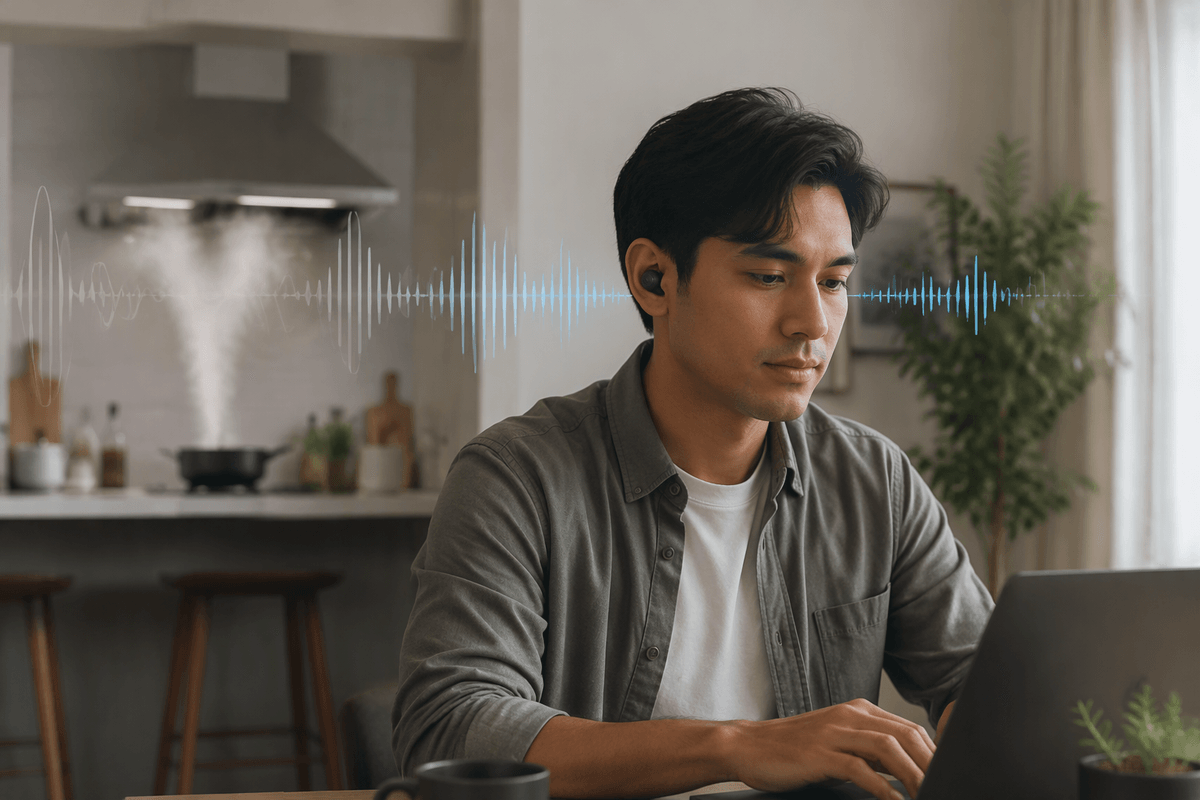
Once the seal is solid, noise control stops being a “wow demo” and starts being a tool you can match to whatever you’re doing. Most people leave it on Noise Cancellation all day, then wonder why they miss announcements or feel a little drained after hours of use. Try treating Noise Cancellation, Transparency, and Adaptive Audio as separate presets for different places, not one global setting.
Open Settings > Bluetooth > (i) next to your AirPods Pro, then spend two minutes testing modes where you actually wear them: kitchen fan, sidewalk traffic, office chatter. Use Noise Cancellation for steady low noise (planes, trains, HVAC). Use Transparency when you need quick awareness (coffee orders, crossing streets). Adaptive can be the sweet spot, but if it keeps changing at the wrong time, switch it off and pick a fixed mode. The trade-off is simple: more isolation can mean less situational awareness, so choose safety over silence when you’re moving around.
Tip 3: Tune the sound to your ears, not defaults
A lot of “these sound okay” reactions come from leaving the EQ and Spatial Audio choices on whatever happened during setup. Start simple: on iPhone, go to Settings > Music > EQ and try a few options with a song you know well. If vocals feel buried, a mild treble lift can help. If the sound feels sharp or fatiguing after 30 minutes, back off the highs rather than cranking volume. The goal is less volume, more clarity.
Then check your AirPods settings: Settings > Bluetooth > (i) next to your AirPods Pro. Turn on Personalized Spatial Audio only if it actually helps your everyday listening; it can make some tracks feel wider, but it can also make voices feel a bit “farther away” in podcasts. If you share your AirPods or swap devices a lot, remember these tweaks don’t always mirror perfectly across every app, so you may need one quick pass on iPad or Mac too.
Tip 4: Learn the hidden controls you’ll use daily
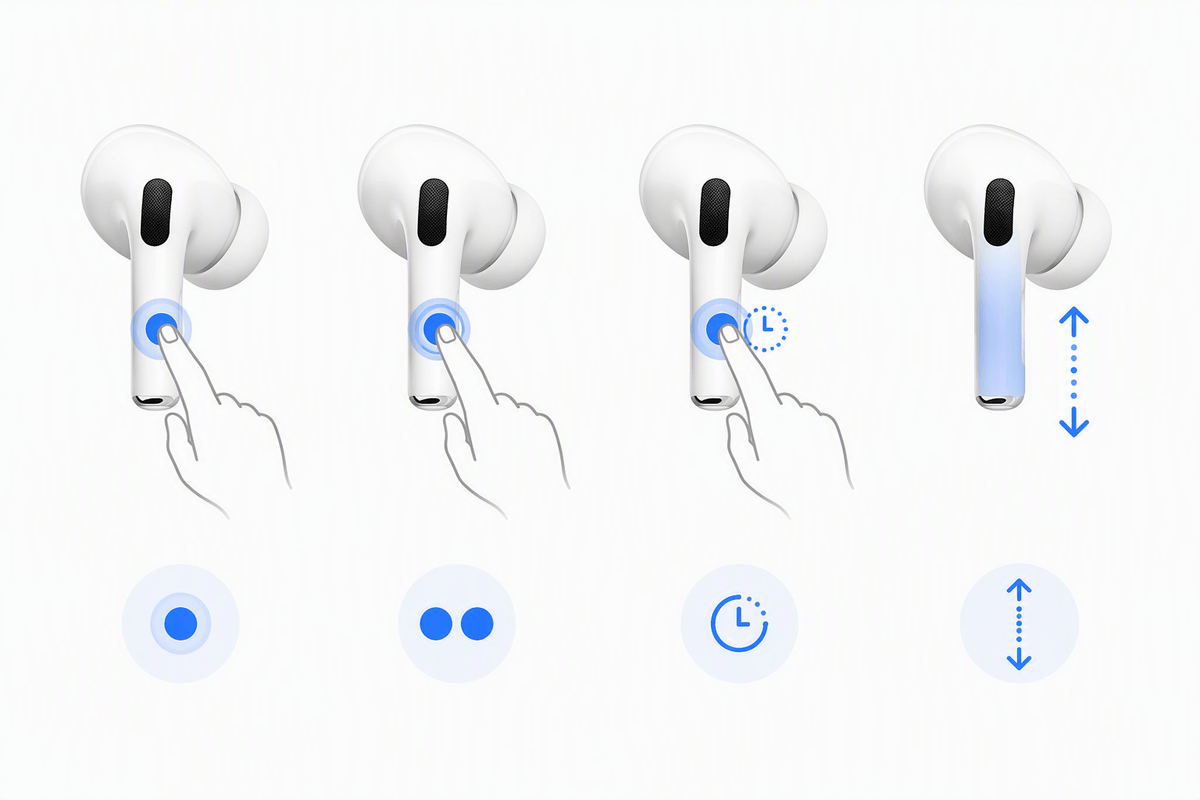
Most people tap the stem, get inconsistent results, and assume the controls are just “touchy.” AirPods Pro 2 are much better if you treat the stem like a tiny button: squeeze, don’t tap. A single press is play/pause, a double press skips, and press-and-hold cycles noise control (or triggers Siri, if you set it that way). The sleeper feature is volume: swipe up or down on the stem in small strokes, which is faster than grabbing your phone mid-walk.
Take two minutes to customize what press-and-hold does for each ear in Settings > Bluetooth > (i) next to your AirPods Pro. Set one earbud to toggle Noise Cancellation/Transparency and the other to toggle Adaptive, or reserve one for Siri if you dictate texts. The practical downside: if you wear gloves or have wet hands, swipes can miss—so keep at least one squeeze action you can rely on every time.
Tip 5: Get longer battery life with smarter charging habits
You’ll usually notice battery annoyance in the same two moments: one earbud dies early on a call, or the case isn’t as full as you assumed. A simple habit that helps is treating the case like a “fuel tank” you top up often, not something you run to zero. Short charge sessions are fine—10 to 15 minutes on a charger before you leave can buy you real listening time—while deep-draining the case repeatedly tends to make your day less predictable.
On iPhone, open Settings > Bluetooth > (i) next to your AirPods Pro and leave Optimized Battery Charging on. It slows down how long your case sits at 100%, which can help long-term battery health if you keep them plugged in overnight. If you don’t have a consistent routine, turning it off can be more practical so you actually start the day full. One constraint: wireless charging is convenient but slower and warmer, so if you’re in a hurry, use a cable.
Keep them reliable: quick fixes and simple maintenance
The day-to-day problems are usually small: one AirPod gets quieter, ANC feels weaker, or pairing turns flaky. First move is basic cleaning. Wipe the tips and case with a soft dry cloth, and use a clean, dry cotton swab to gently clear the mesh (don’t push wax into it). If the sound is uneven, swap left/right tips for a minute—if the “quiet side” follows the tip, it’s the tip, not the speaker.
When behavior gets weird across devices, do a quick reset instead of chasing settings. Forget the AirPods in Bluetooth, then press and hold the case button (with buds inside, lid open) until the light flashes amber, then white, and re-pair. It costs you two minutes and you’ll lose some customizations, but it fixes a surprising number of glitches. Keep an eye on firmware updates by leaving them near your iPhone while charging, and use Find My early if a bud goes missing—waiting tends to turn “misplaced” into “gone.”
A simple “set it once, enjoy it daily” checklist
Do this once, then stop thinking about it: run Ear Tip Fit Test and commit to the right sizes (even if they differ). Set press-and-hold per ear so you can reliably switch Noise Cancellation/Transparency/Adaptive without pulling out your phone, and practice squeeze (not tap) plus one or two volume swipes. Pick one sound baseline—EQ that makes vocals clear at lower volume—and only keep Personalized Spatial Audio on if it helps your daily mix of music and podcasts. Leave Optimized Battery Charging on if you charge overnight; use a cable when you need a fast top-up. Turn on Find My and check you can play a sound before you actually lose one.