Why your laptop has two GPUs in the first place
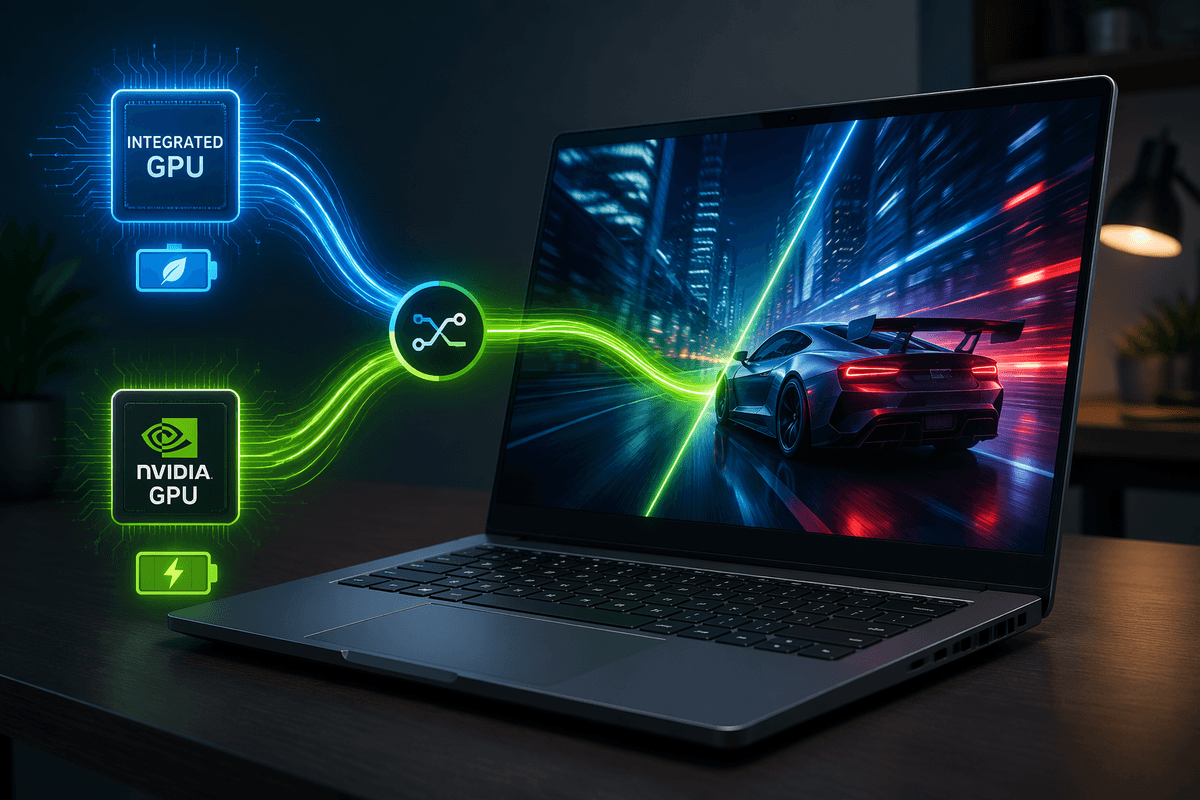
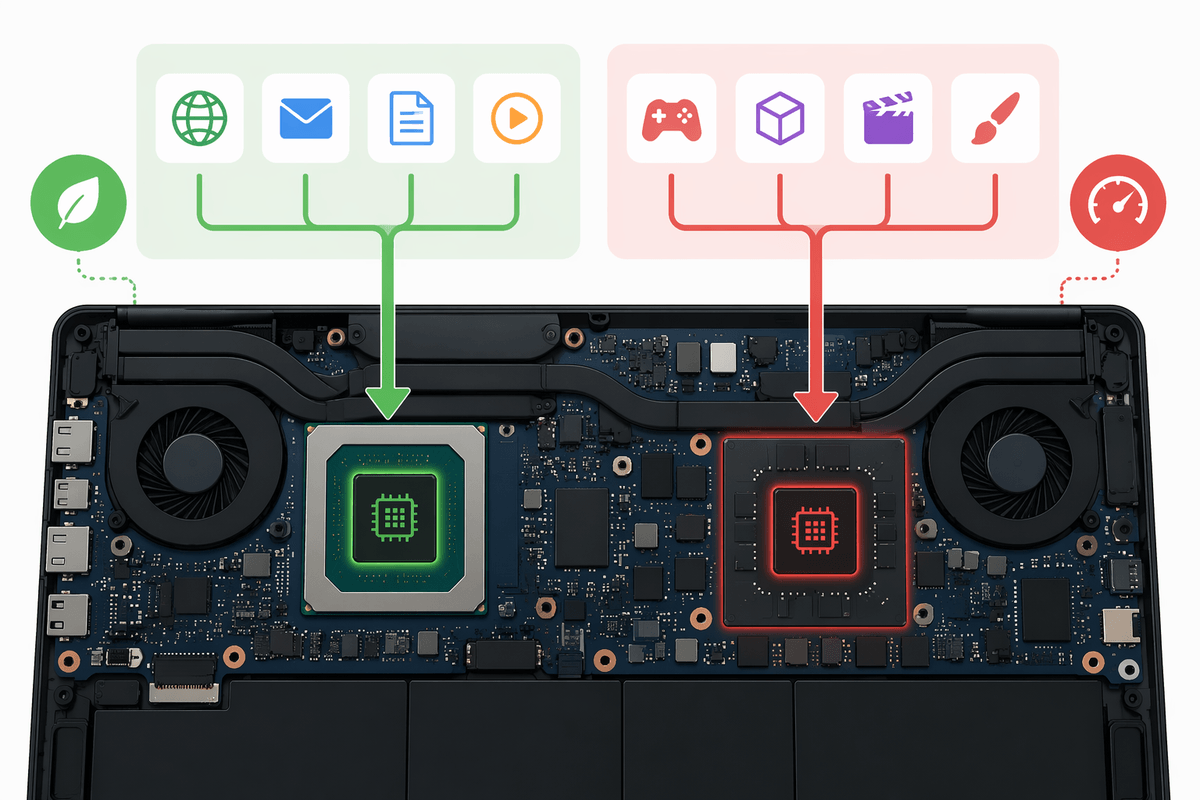
You’ll often see two graphics options in a laptop because they’re optimized for different jobs. The integrated GPU (inside the Intel or AMD CPU) is built for efficiency: it handles the desktop, web browsing, video playback, and light creative work while sipping power. The NVIDIA GPU is built for speed: games, 3D apps, GPU-accelerated effects, and heavier compute tasks, but it draws much more power and creates more heat.
Keeping both lets the laptop feel “fast when needed” without running hot and loud all day. The practical cost is extra complexity—more drivers, more switching logic, and sometimes confusing behavior when an app doesn’t pick the GPU you expected.
How Optimus switches graphics without you noticing
You can think of Optimus as a routing setup: the integrated GPU stays in charge of the laptop’s built-in display, and the NVIDIA GPU only wakes up when an app is likely to benefit from it. When that happens, the NVIDIA GPU renders the heavy frames off to the side, then hands the finished image back to the integrated GPU to actually put on screen. To you, it looks like nothing “switched,” because the desktop never disconnects and the display stays attached to the same graphics output.
The selection is based on app profiles, driver heuristics, and your settings in Windows and the NVIDIA Control Panel. It usually works, but it isn’t magic: some apps look “light” at launch and only become demanding later, and copying frames through the integrated GPU path can add a small overhead. Ports also matter—many laptops wire some external monitor outputs directly to the NVIDIA GPU, which changes behavior the moment you plug in a display.
The real-world wins: battery life, heat, and noise
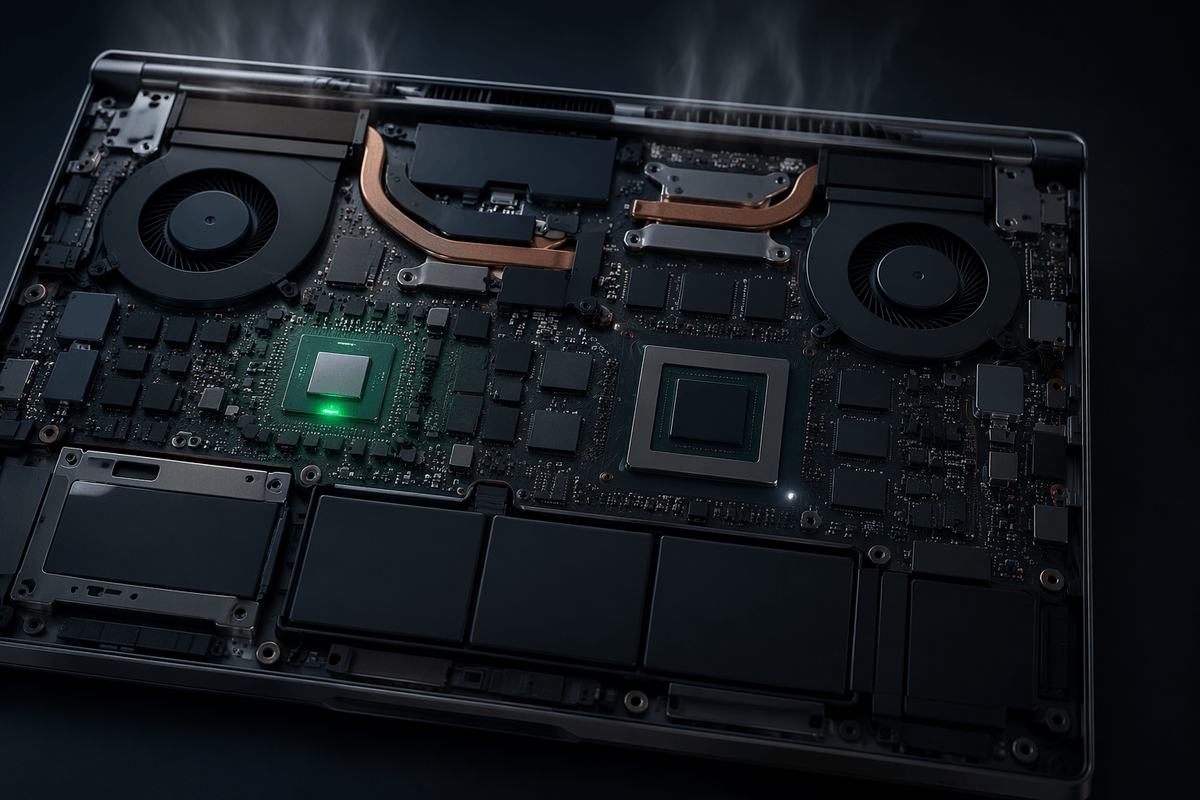
The most noticeable Optimus win shows up the moment you unplug: with the integrated GPU handling the desktop and video playback, the NVIDIA GPU can stay fully asleep instead of idling at a higher power floor. That typically translates into longer battery life during “normal” days—docs, research tabs, Zoom, and streaming—because you’re avoiding both the GPU’s power draw and the extra heat it dumps into the chassis.
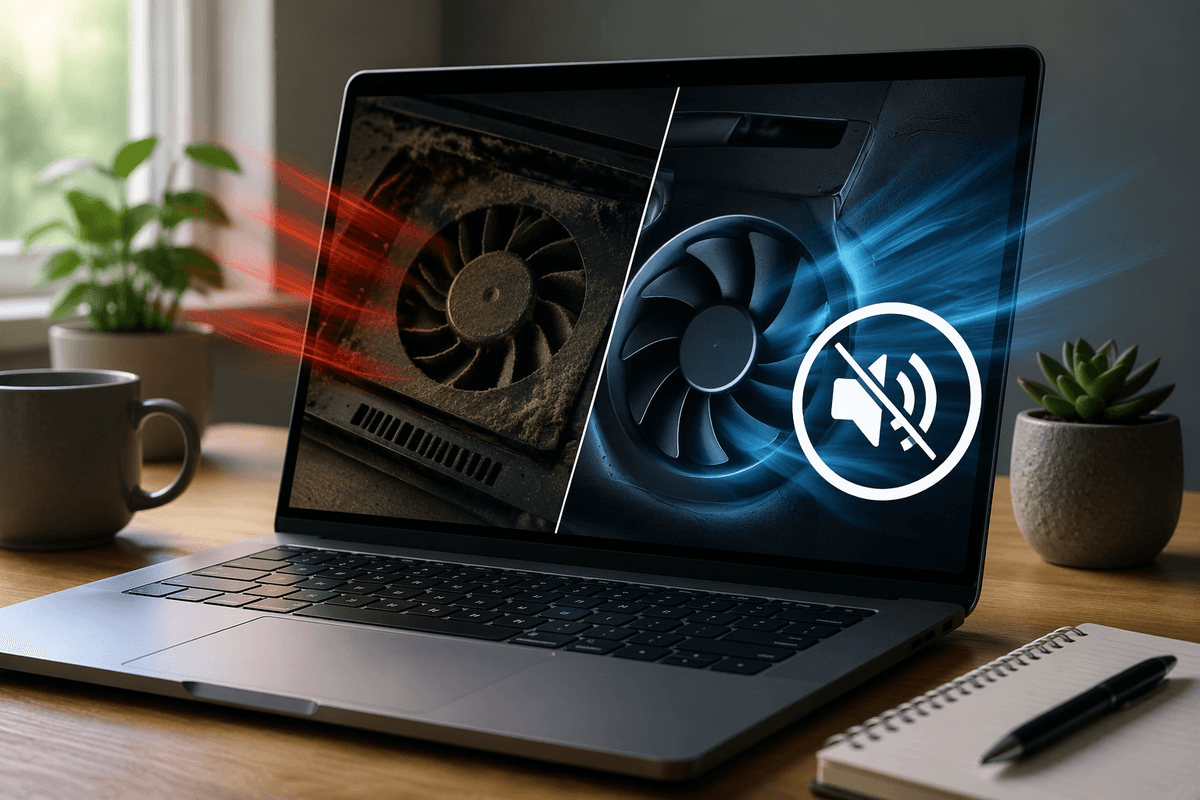
Less heat changes everything else. Fans ramp later and spin slower, so the laptop is quieter in classrooms, meetings, and libraries. The keyboard deck also tends to stay cooler because the cooling system isn’t constantly clearing discrete-GPU heat. The catch is that one background app can wake the NVIDIA GPU and erase these gains, so a single browser tab or overlay can be the difference between calm-and-cool and suddenly warm-and-loud.
The trade-offs: performance quirks and added latency
The weird part shows up when you care about consistency. Because the NVIDIA GPU often renders “off-screen” and then passes frames through the integrated GPU to reach the laptop display, there can be a small performance hit versus a direct-to-display path. It’s usually minor, but in high-FPS esports titles it can show up as slightly lower peak FPS or a touch more input lag, especially if you’re already CPU-limited.
App selection is the other trade-off. Optimus relies on profiles and detection, so an app might launch on the integrated GPU, then stutter when it suddenly needs the NVIDIA GPU, or it may stick to the wrong one entirely. Overlays, screen recorders, browsers with hardware acceleration, and even some conferencing apps can also wake the NVIDIA GPU in the background, quietly raising power draw and heat. Troubleshooting can take time, and it’s not always obvious which process caused the switch.
Optimus vs Advanced Optimus vs a MUX switch
You’ll also see laptops advertised with “Advanced Optimus” or a “MUX switch,” and those labels are about one thing: whether the NVIDIA GPU can talk to the built-in screen directly. Basic Optimus keeps the integrated GPU as the display’s “owner,” then copies frames over when the NVIDIA GPU renders. Advanced Optimus adds a hardware path that can dynamically switch the internal display between the iGPU and NVIDIA GPU without a restart, aiming to give you direct-to-display performance when gaming while still falling back to iGPU efficiency on battery.
A MUX switch is the more manual version. It lets you pick iGPU-only (best battery) or dGPU-only (best performance) in BIOS or a vendor app, often requiring a reboot. The upside is predictable FPS and latency. The downsides are convenience and power: dGPU-only can cut battery life fast, and not every port is wired the same—some HDMI/USB-C outputs may bypass Optimus entirely, which can be great for gaming on an external monitor but confusing if you expect the same behavior everywhere.
Quick setup: forcing the right GPU for each app
You’ll notice the “wrong GPU” problem most when a game launches on the iGPU, or when one background app keeps the NVIDIA GPU awake on battery. The quickest fix is to set per-app preferences in Windows: go to Settings > System > Display > Graphics, add the app, then choose Power saving (iGPU) or High performance (NVIDIA). It’s simple, and it tends to override the guesswork.
If you want a second lever, use NVIDIA Control Panel > Manage 3D settings > Program Settings, then pick the preferred graphics processor for that app. After changes, fully quit and relaunch the app (some won’t switch mid-run). On a battery-focused day, also disable unnecessary overlays (Discord, GeForce Experience, recording tools) and check Task Manager’s GPU column to spot a process that’s keeping the dGPU active. The limitation: store apps and some launchers can ignore settings or spawn helper processes that need their own entry.
Common headaches and what to try before returning it
The most common headache is “why is my battery suddenly bad?” because something is keeping the NVIDIA GPU awake. Start by opening Task Manager, add the “GPU engine” column, and sort by it—browsers with hardware acceleration, chat overlays, screen recorders, and conferencing apps are frequent culprits. Toggle hardware acceleration in that app, disable overlays, then reboot once to clear any stuck GPU state.
External monitors cause the next wave of confusion. If your HDMI or USB-C port is wired to the NVIDIA GPU, plugging in a display can force dGPU behavior even if you set apps to “Power saving,” raising idle power and fan noise. If you need battery, use the port that routes through the iGPU (if your laptop has one), or disconnect the external display when you’re mobile.
If games stutter or pick the wrong GPU, set the app in Windows Graphics settings, then fully quit and relaunch. Update NVIDIA and iGPU drivers together; mismatched versions can make switching flaky. The practical downside: some laptops and apps simply behave inconsistently, and fixing it can take an hour you didn’t plan to spend.
Choosing a laptop with Optimus that fits your priorities
At shopping time, treat “Optimus” as a baseline and focus on the wiring details. If you care about competitive FPS or low-latency gaming on the built-in screen, prioritize Advanced Optimus or a MUX switch so the display can run directly from the NVIDIA GPU. If you care most about battery and quiet use, basic Optimus is fine—just look for an iGPU-routed USB-C/DP output so an external monitor doesn’t force the dGPU awake.
Also check the screen refresh rate, power adapter size, and whether the laptop offers a clear “hybrid/dGPU-only” toggle in its utility. The practical cost is complexity: the more switching options you get, the more settings, reboots, and port quirks you may need to manage.