Why your computer fan gets loud in the first place
You usually notice fan noise when you’re doing something simple—email, a few browser tabs, maybe a video call—and the machine suddenly sounds like it’s working hard. Most fans get loud for one basic reason: the computer is trying to dump heat fast enough to protect the CPU or GPU. That heat can come from real workload, but it also comes from “invisible” work like background updates, a runaway browser tab, or security scans. The other common cause is restricted airflow: dust in vents, a blocked intake, or using a laptop on a blanket. Fans can also get louder as bearings wear, which is one of the few causes that won’t improve with settings.
Quick checks before you open anything or install tools
When the fan ramps up, start with a few checks you can do in under a minute. Put your hand near the exhaust vent: if the air is barely moving or feels unusually hot, airflow is likely the issue. Move the computer onto a hard surface, and make sure the intake areas (often the bottom of a laptop, or the front/bottom of a desktop) aren’t pressed against fabric or pushed flush to a wall. If you’re using a dock or laptop stand, confirm it isn’t covering vents.
Then do a quick “is something stuck running?” check. On Windows, open Task Manager; on Mac, open Activity Monitor. Sort by CPU and look for anything sitting high for more than a minute or two (browser tabs, video apps, sync tools, updates). Close the obvious culprit and see if the fan settles within a few minutes. If the noise is a rough rattling or buzzing that changes when you tilt the laptop slightly, stop there—worn fan bearings won’t be fixed by settings, and forcing it can lead to overheating.
Find the real culprit: CPU, GPU, or background tasks
A fan that stays loud under “light use” usually means one chip is doing heavy work, even if you don’t feel it. Keep Task Manager (Windows) or Activity Monitor (Mac) open for a few minutes and watch trends, not spikes. If CPU usage sits high while you’re idle, look for the process name that keeps returning to the top—cloud sync, antivirus scans, browser helpers, video-meeting add-ons, or an update service. Pause sync temporarily, finish the update, or restart the app rather than killing random system processes.
If CPU looks calm but the fan still ramps up during video calls, streaming, or anything 3D, the GPU may be the driver. On Windows, add the “GPU” columns in Task Manager and check which app is using it; on Mac, note if the issue appears only on an external monitor (often triggers the stronger GPU). A practical constraint: some GPU-heavy apps don’t offer “light” modes, so the safest fix is reducing resolution/frame rate or closing extra tabs, then confirming temperatures and fan noise drop within 2–5 minutes.
Clean airflow safely: vents, filters, and dust buildup
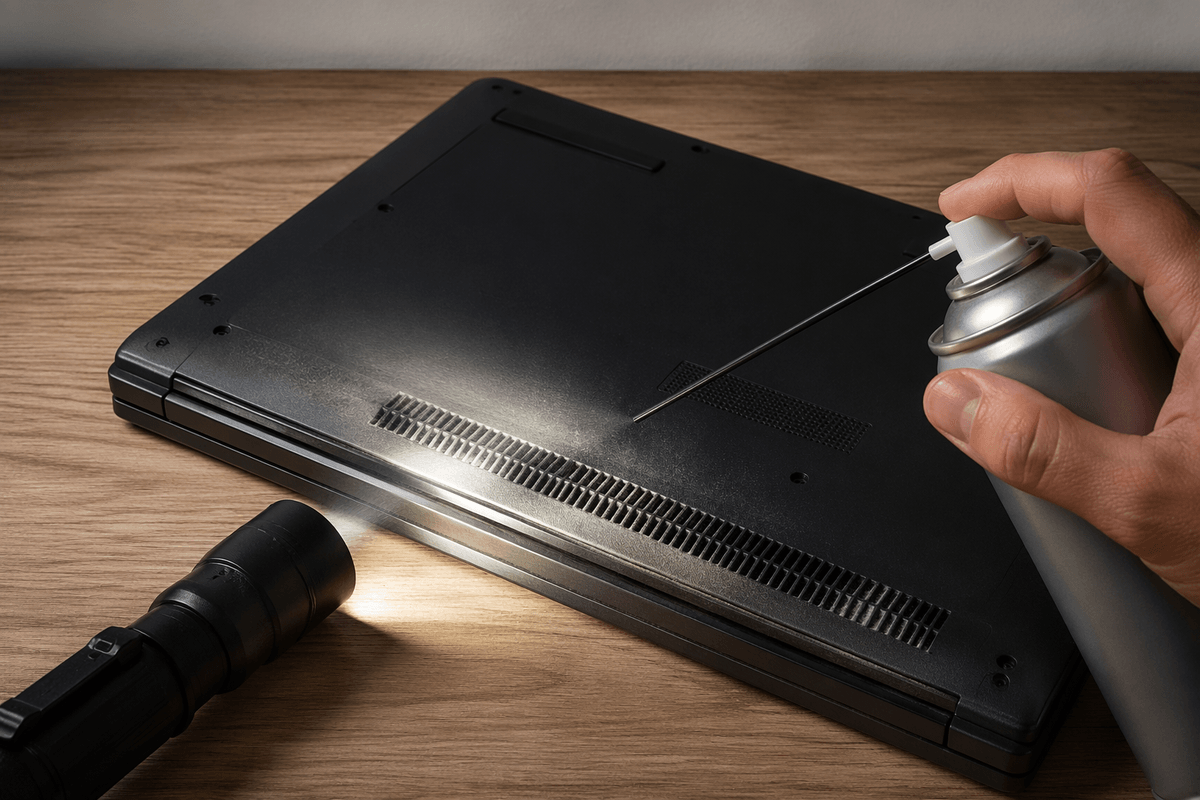
You’ve probably seen it: the computer isn’t “busy,” but the fan sounds busy. Dust is often the reason, because a thin layer on vents or a heatsink acts like a blanket and forces the fan to spin faster for the same cooling. Start with the safest cleaning: shut down (not sleep), unplug power, and if it’s a laptop, disconnect any peripherals. Use a flashlight to inspect intake and exhaust vents. Blow short bursts of compressed air along the vent openings rather than straight into them, and keep the can upright to avoid spraying cold liquid. If you can access a desktop’s dust filters, slide them out and rinse with water, then let them dry fully before reinstalling.
A practical limitation: blasting air too hard can overspin a fan and stress the bearings. If you can see the fan blades through a vent, gently stop them with a toothpick while you blow air. If airflow still feels weak after cleaning, don’t keep forcing it—packed dust deeper inside may need a careful internal clean by a shop.
Tune performance and power so fans don’t panic
You’ve cleaned airflow and ruled out obvious runaway apps, but the fan still overreacts during everyday work. That’s usually a power and “boost” problem: modern CPUs and GPUs are designed to sprint for a few seconds, then cool down. If your system is allowed to boost aggressively all the time, those quick sprints turn into repeated heat spikes, and the fan keeps chasing them.
On Windows, start with the Power mode slider in Settings and try “Balanced” (or “Best power efficiency” on laptops) instead of “Best performance.” In advanced power settings, lowering “Maximum processor state” from 100% to 99% can disable some boost behavior on many systems and often drops noise a lot with only a small hit to responsiveness. On macOS, Low Power Mode (especially on battery) can smooth out fan ramps during browsing and calls. A real constraint: limiting boost can slow heavy exports or games, so test during your normal workflow and watch for a 2–5 minute cooldown—if temps and noise don’t settle, settings alone won’t solve it.
Adjust fan curves and control software without damage
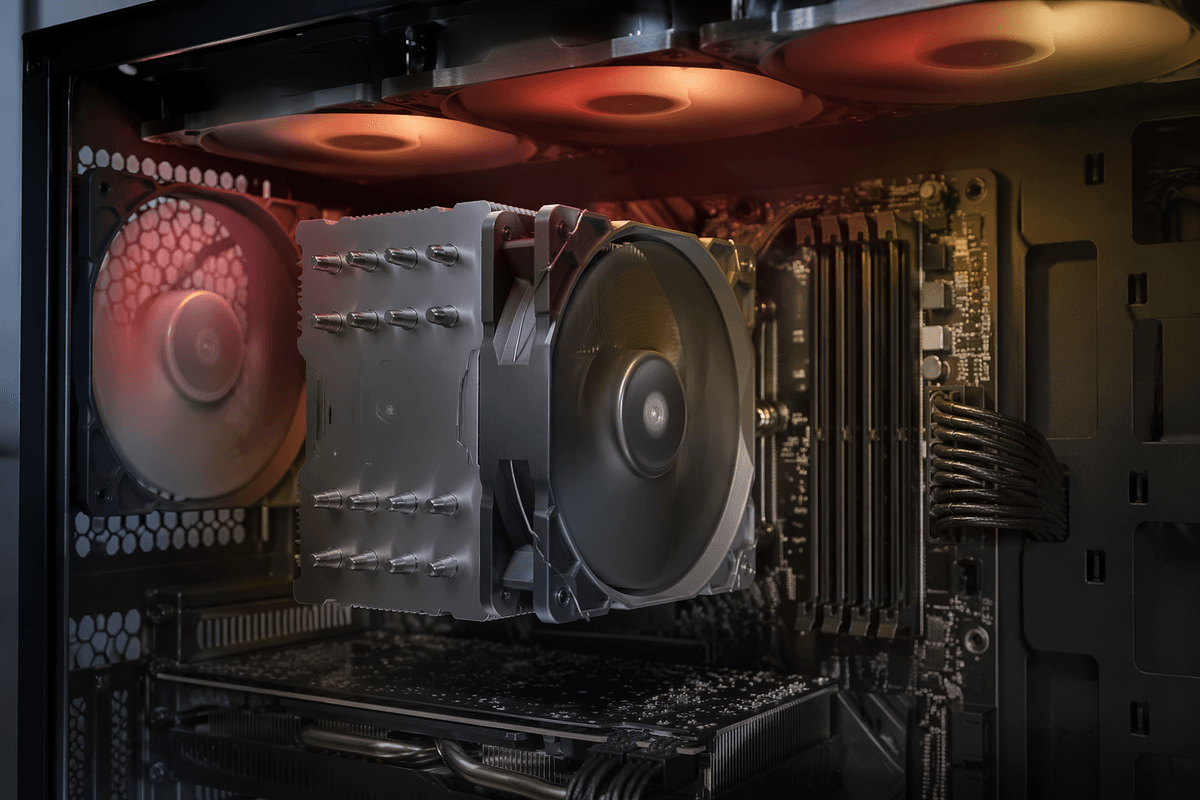
If the machine is otherwise healthy but the fan “jumps” from quiet to loud, fan control can smooth those ramps. Start with what the manufacturer provides: many laptops (Lenovo Vantage, Dell Power Manager, ASUS Armoury Crate, HP Command Center) offer Quiet/Balanced/Performance profiles that adjust fan behavior without risky tweaks. Pick the quietest mode that keeps temperatures stable during your normal work for 10–15 minutes.
On desktops, motherboard fan control in the BIOS/UEFI is usually safer than random Windows utilities. Use a gentle curve: keep a reasonable minimum (so the fan actually spins), then ramp gradually instead of a steep jump at one temperature point. Avoid setting fans to “0 RPM” unless you’re sure that header and fan support it, and don’t chase silence by pushing CPU temps to the edge—heat-soak builds quietly, then the fan has to roar to recover. If you can’t keep safe temps without a harsh curve, the limit is cooling, not software.
When it’s time for new thermal paste or a fan swap
You’ve done the safe steps—airflow is clear, power settings are reasonable, and there’s no runaway app—yet the fan is still loud and temperatures climb fast. That’s when worn thermal paste or a tired fan becomes likely. Thermal paste problems show up as sudden heat spikes under light load, or a CPU that hits high temps quickly and then takes a long time to cool even after the workload stops. Fan wear sounds different: a dry, gritty whine, a ticking/rattle, or a vibration you can feel on the chassis, often worst at certain speeds.
Repasting or swapping a fan is doable, but it’s the point where DIY risk increases. Laptops can hide screws under feet, use fragile clips, and route tiny fan cables near the heatsink; a tear or stripped screw can turn into a bigger repair. If your system is under warranty, or you can’t find a clear teardown guide for your exact model, a local shop is usually the safer (and sometimes cheaper) choice than trial-and-error.
A quieter computer, with safe temperatures you can trust
When things are working properly, the pattern is predictable: the fan rises during a real task, then eases back down within a few minutes once you stop. Use that as your “trust test.” After any change—closing a process, clearing vents, switching to Balanced/Quiet—do a 10–15 minute normal-work run (browser, email, a call) and confirm the fan doesn’t keep climbing. If it does, treat it as a cooling limit, not something to tune harder.
Don’t chase silence by letting temperatures ride the edge, because heat can build quietly and then force a loud recovery. A small cost is accepting a slightly lower boost or frame rate in exchange for steady, comfortable noise. If you’re hearing ticking, scraping, or vibration, or temps spike fast under light load, stop experimenting and schedule a fan/thermal service—those problems rarely “self-fix” with settings.