When your iPhone time is wrong, what it breaks
You usually notice a wrong iPhone clock when something small fails first: a calendar event shows up an hour off, an alarm doesn’t ring, or a text “arrives” before it was sent. From there, bigger things can break quietly. Two‑factor login codes can fail because they depend on accurate time. Mail and Messages threads can look out of order. Fitness, weather, and other widgets may not refresh when they should. Photos and files can be saved with the wrong timestamp, which makes later sorting a mess. The upside is most cases are fixable in minutes once you confirm what’s actually setting the time.
Confirm it’s a settings issue, not a time zone mix-up
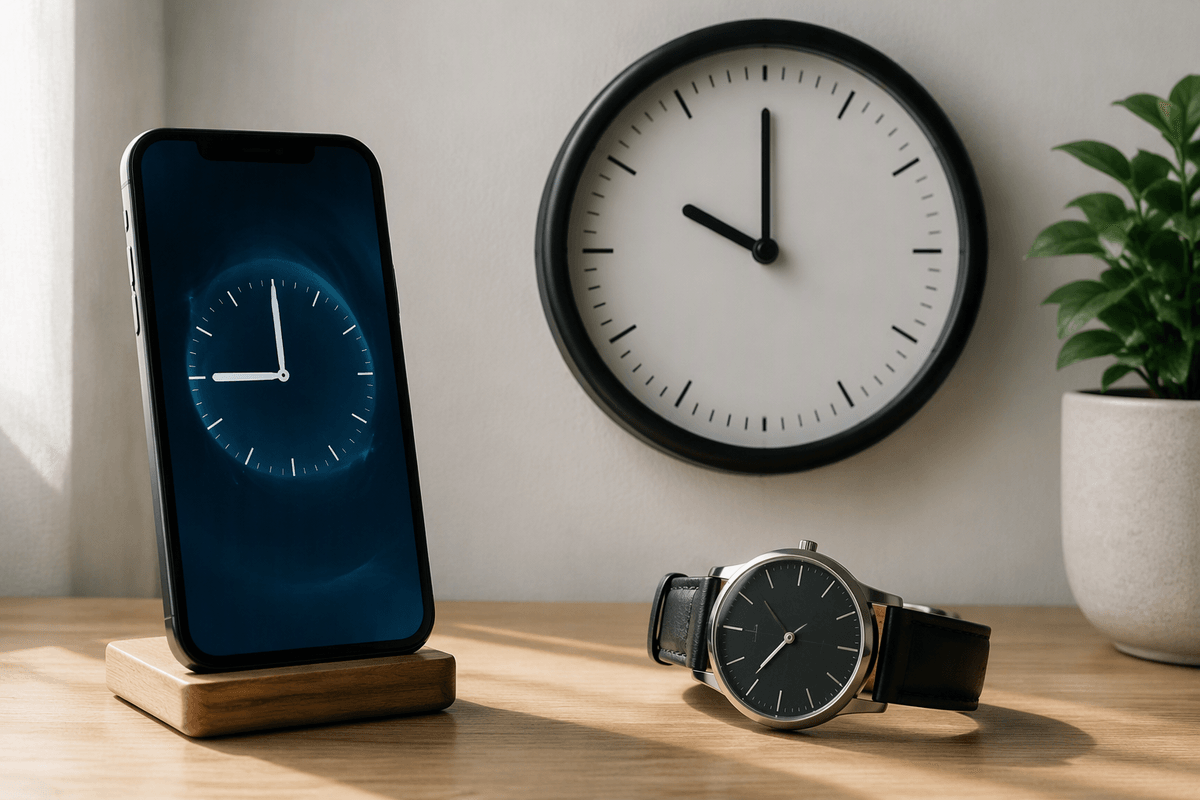
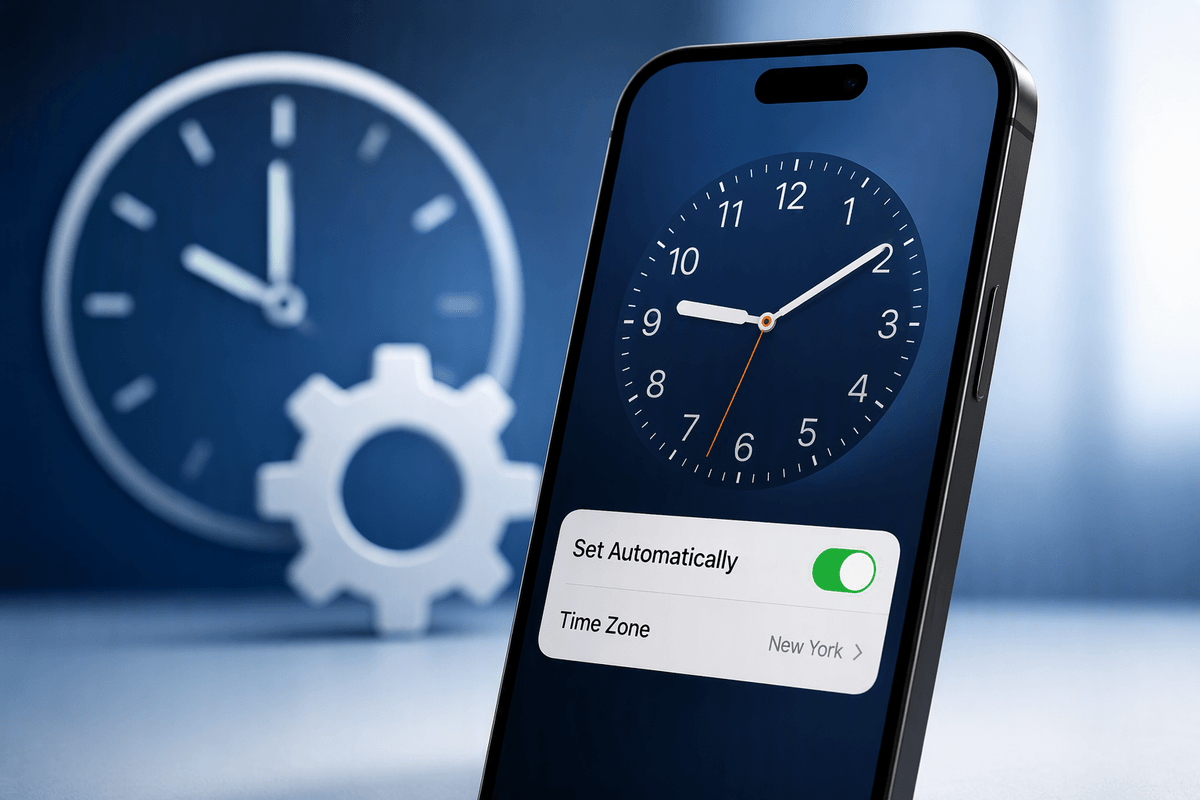
Start by checking whether the time is “consistently wrong” or “wrong only by a familiar offset.” If it’s off by exactly 1 hour (or exactly a whole number of hours), that’s usually a time zone or daylight saving issue, not a random clock drift. Go to Settings > General > Date & Time and look at Time Zone. If it shows a city you don’t recognize (or a nearby city with different rules), fix that first.
If the minutes are wrong, or the time keeps jumping forward and back, you’re more likely dealing with a settings or sync problem. In the same Date & Time screen, note whether Set Automatically is on. If it’s off, your iPhone is using whatever you last set manually. If it’s on but still wrong, that points to a carrier/network or location signal issue you’ll address in the next steps.
Use “Set Automatically” the right way (and when it fails)
With Time Zone looking sane, “Set Automatically” is your fastest clean fix. Go to Settings > General > Date & Time, turn Set Automatically off, wait 10 seconds, then turn it back on. Give it a minute on Wi‑Fi or cellular to resync. If the toggle is on but the time is still wrong, don’t manually “correct” it yet—manual time can mask the real issue and your phone may snap back later.
If Set Automatically is greyed out, Screen Time is usually controlling it: Settings > Screen Time > Content & Privacy Restrictions > Location Services > System Services, and make sure “Setting Time Zone” is allowed. If the toggle is available but won’t hold, switch Airplane Mode on/off, then try again. This relies on a working network signal (and sometimes carrier time), so in poor reception it can fail until you reconnect.
Fix the usual blockers: location, network, and restrictions
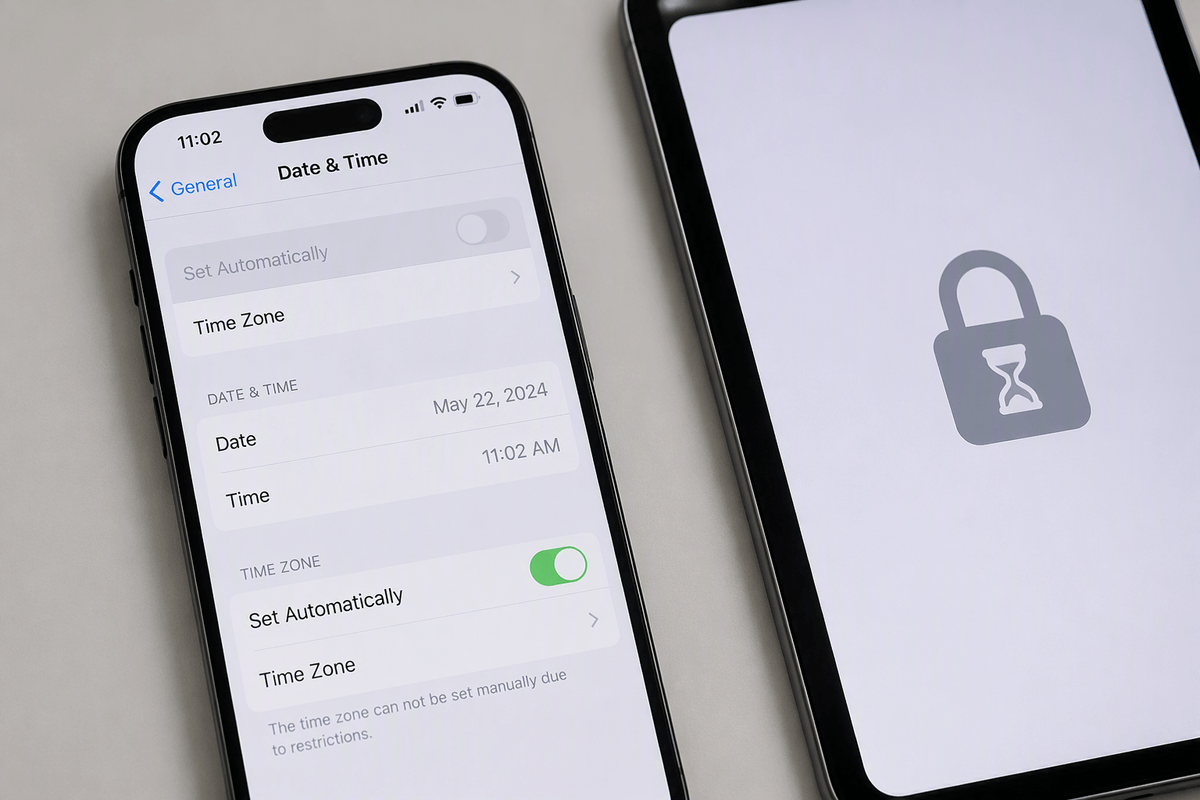
You’ll usually get stuck here because the iPhone can’t trust its inputs. First, confirm Location Services is on: Settings > Privacy & Security > Location Services. Then scroll to System Services and make sure “Setting Time Zone” is enabled. If you keep Location Services off for privacy or battery, that’s a real trade-off: Automatic time zone updates can’t work reliably while it’s disabled.
Network comes next. A weak cellular signal, a captive Wi‑Fi portal (hotel/airport) can delay time sync. Toggle Airplane Mode on for 10 seconds, then off. If you’re on Wi‑Fi, try switching to cellular (or the reverse) and revisit Settings > General > Date & Time. If things still don’t settle, update carrier settings: Settings > General > About, wait a few seconds, and install any prompt.
If Date & Time options are greyed out again, return to Screen Time restrictions and temporarily turn off Content & Privacy Restrictions, then retry Set Automatically.
If the clock drifts: restart, updates, and quick resets
If the time is mostly right but slowly drifts, treat it like a stuck sync rather than a wrong time zone. Start with a simple restart (power off fully, then back on) and give it a minute connected to Wi‑Fi or cellular. Then go back to Settings > General > Date & Time and do the quick reset: toggle Set Automatically off for 10 seconds, then on again. If it corrects briefly and slips later, your network path may be interfering— try again on a different connection.
Don’t skip iOS updates when this is happening. Go to Settings > General > Software Update and install what’s available, then repeat the Set Automatically toggle. If you’re traveling or in spotty service, a quick “Reset Network Settings” can also help (Settings > General > Transfer or Reset iPhone > Reset). The cost: it wipes saved Wi‑Fi networks and APN settings, so plan to re-enter passwords afterward.
App-level problems: Calendar, alarms, and widgets showing wrong time
You can have the correct system time and still see “wrong time” behavior inside a few apps, especially right after travel, a restore, or an iOS update. Calendar is the most common: open the event and check its time zone setting (many events can be pinned to a specific time zone). If meetings are consistently off by an hour, also review Settings > Apps > Calendar > Time Zone Override—using it can be helpful for frequent travelers, but it can also make local times look wrong if it’s set to a past location.
For alarms, confirm you’re looking at the right clock face: in the Clock app, review Bedtime/Sleep alarms separately from standard alarms, and double-check AM/PM. If alarms don’t fire on time, toggle the alarm off/on, then restart once; focus modes and notification settings can change what you hear, even when the time is correct.
For widgets showing stale or incorrect times, remove and re-add the widget, or restart the phone to force a refresh. The practical downside is you may need to reconfigure the widget layout afterward.
When none of this works: what to check before support
If the time is still wrong after all of this, check for a “second source of truth” changing it. Look at any work or school management profile (Settings > General > Device Management) and remove unknown profiles, since they can enforce time, network, or location rules. If you use a cellular Apple Watch, turn both devices off, then back on, and test with the watch powered off to rule out odd sync behavior.
Before contacting Apple or your carrier, capture specifics: your current iOS version, your carrier name, whether it’s wrong only on Wi‑Fi or only on cellular, and whether it jumps at a certain time each day. If you’re ready for a bigger step, back up, then try an Erase All Content and Settings—the cost is setup time and restoring apps—but it cleanly separates a software issue from a hardware or carrier problem.