Remote downloads: why it’s useful and when it fails
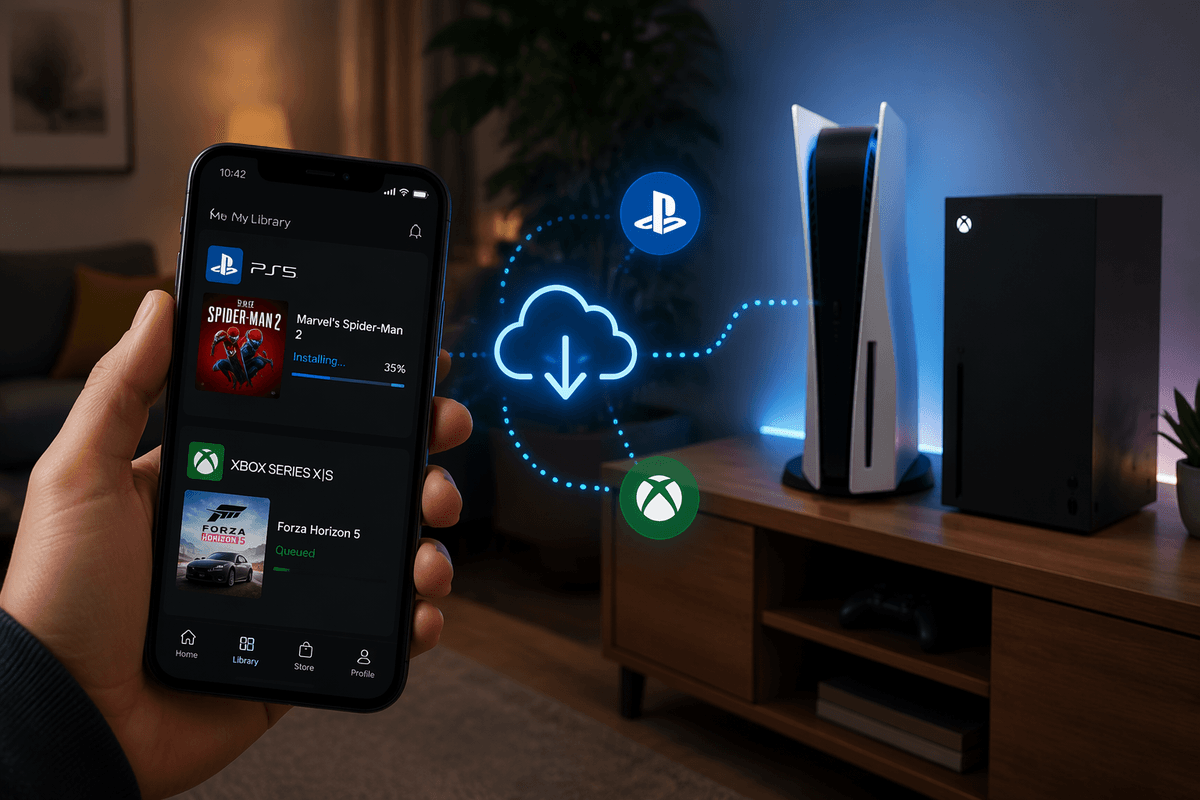
You buy a game on your lunch break, then get home and wait while it downloads. Remote installs are meant to remove that dead time: you queue the download from your phone, and the console grabs it while you’re out, so it’s ready when you sit down. It’s also handy for updates, preloads, and grabbing a free add-on without turning the TV on.
When it fails, it’s usually not mysterious—it’s practical. The console may be fully powered off instead of in the right standby/sleep mode, the wrong account is signed in, the console isn’t linked in the app, or storage is already full. Even when everything is set up, big downloads still cost time and data, and slower home internet can make “ready by tonight” unrealistic.
Before you start: accounts, apps, and console power settings
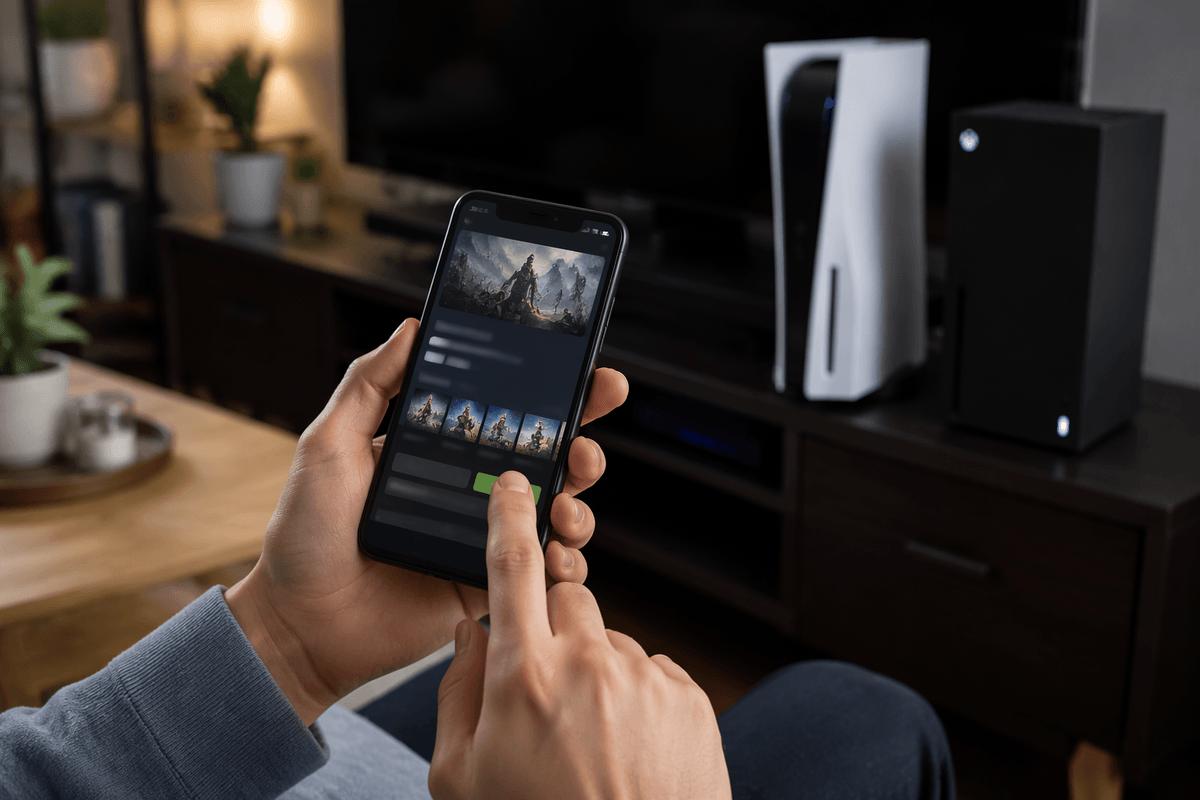
The setup is mostly about making sure your phone, your account, and your console all agree on one thing: which library to pull from and which box to install to. Use the official apps (PlayStation App for PS5, Xbox app for Xbox), and sign in with the same PSN/Microsoft account you use to buy games. Then confirm the console is registered to that account as your primary/home console (PS5: Console Sharing and Offline Play; Xbox: Home Xbox). If you have two consoles, double-check you’re targeting the right one in the app before you hit install.
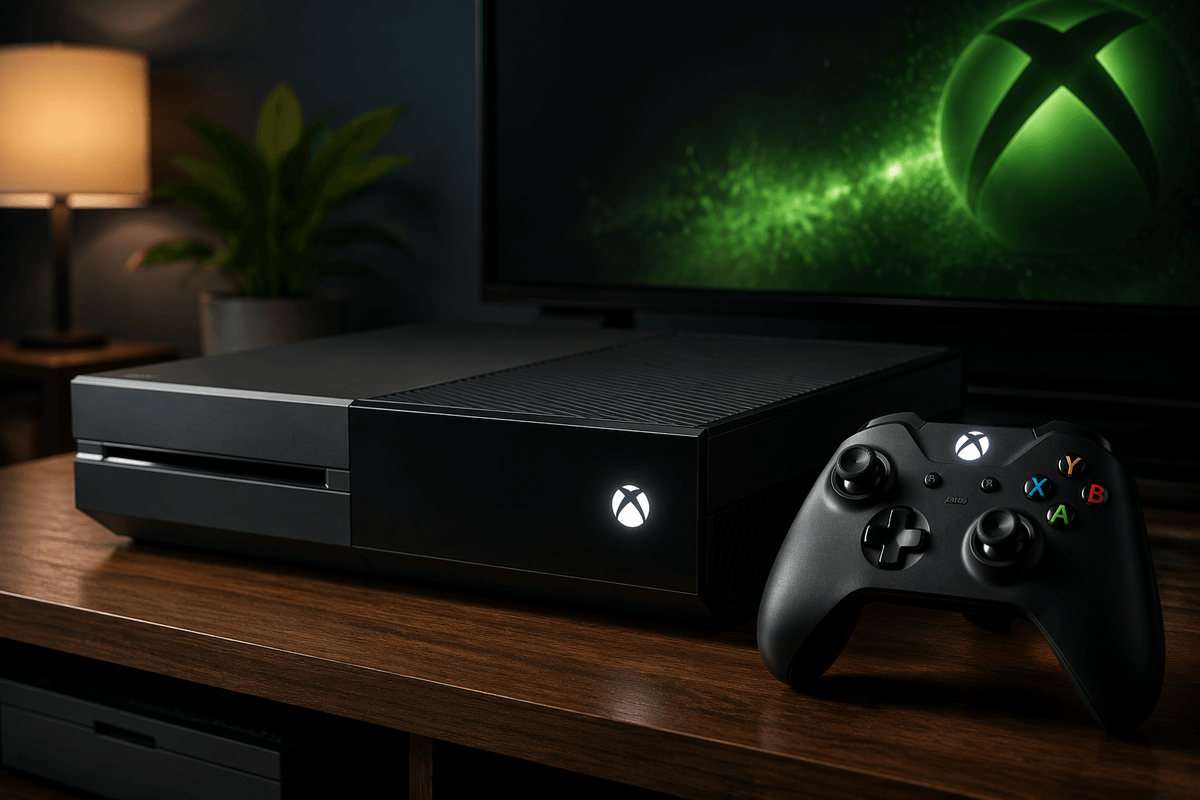
Power settings are the other deal-breaker. Remote installs won’t wake a console that’s truly shut down. On PS5, enable the features that keep network access available in Rest Mode. On Xbox, use Sleep (not Energy saver/shutdown) and allow updates and remote features. These modes draw a little power all the time, but they’re what make “download while I’m out” actually work.
PS5 from your phone: install from PlayStation App
You’re most likely to use this right after buying a game (or spotting one in the PlayStation Store). Open the PlayStation App, sign in, then tap the game and choose Download to Console. If you see more than one PS5 listed, pick the one you actually play on—people often send a download to the wrong room and think it “didn’t work.” You can also start from your Game Library in the app for past purchases; that’s usually faster than searching the store again.
If the button is missing or it only offers “Download” with no console choice, check three practical things before you keep retrying: you’re signed into the same PSN account that owns the game, the PS5 is in Rest Mode with network features enabled, and you have enough free storage for the full install (not just the base game). Remote installs can also stall if your PS5 is mid-update, so give it a minute, then refresh the app and try again.
Xbox from your phone: install with the Xbox mobile app
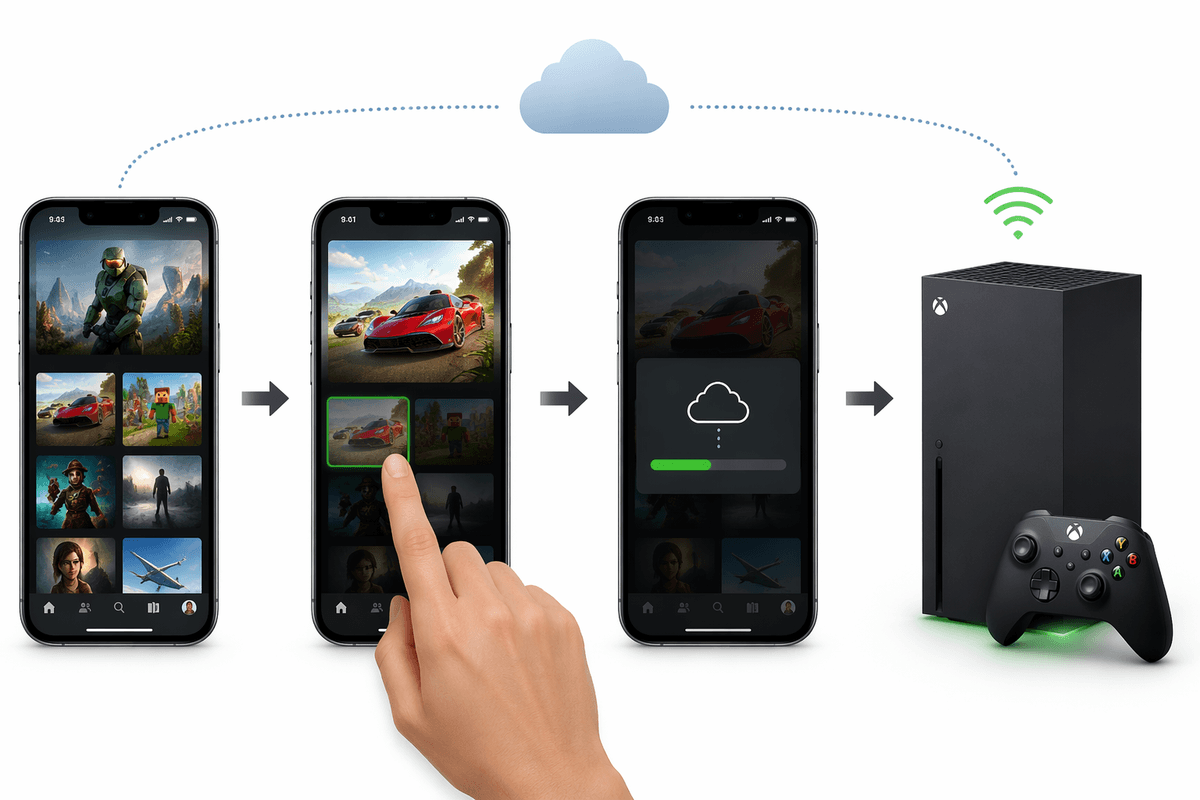
On Xbox, remote installs usually start from the Xbox mobile app’s Library. Sign in with the Microsoft account that owns the game, open My library, pick the title, then choose Install to and select the right console. If you’re browsing the Store in the app, you can also buy and install in one go, but the library route is more reliable for older purchases and Game Pass titles.
If Install to is greyed out or nothing happens, treat it like a checklist: the console needs to be in Sleep power mode (not shut down), remote features have to be enabled, and the app has to be linked to that specific Xbox. Also watch for “you own this” mismatches—family members often buy on one account and try to install from another. One practical constraint: Xbox can queue the download remotely, but it won’t create storage space for you, so a nearly full drive will stop the process cold.
Choosing what to install: editions, add-ons, and cross-gen confusion
You tap Install and suddenly you’re choosing between Standard, Deluxe, Ultimate, “Cross-Gen,” “Xbox One,” “Series X|S,” PS4, or PS5 versions. The safest move is to match the version to the console you’ll actually play on: PS5 version for PS5, Series X|S version for Series X|S. Cross-gen bundles usually include both, but the app may show them as separate downloads, and it’s easy to grab the older version by accident—especially if the PS4/Xbox One listing appears first or looks smaller.
Add-ons create a second layer of confusion. Some “extras” are just unlock keys that require the base game installed, while others are big content packs that need their own space and can download separately. If you’re tight on storage or data, skip optional texture packs, language packs, and bonus content until the base game launches cleanly. A common gotcha: installing an upgrade doesn’t always remove the older version automatically, so you can end up with two installs chewing up space.
Storage and bandwidth: avoiding the “not enough space” surprise
You usually discover storage is the real bottleneck when you’re away from the console: the install queues fine, then fails because the drive can’t fit the full package. Modern games can need space for the base game, a day-one patch, and any high-res texture packs you accidentally selected—plus the console often wants extra “working room” while it copies and installs. Before you tap Install, check free space in the console’s storage screen and leave a buffer, not just the exact listed size.
Bandwidth is the second surprise. A 100GB download on a slower connection can take most of a day, and if your ISP has data caps, remote installs can quietly burn through your monthly limit. If you want “ready tonight,” queue earlier, pause other downloads, and avoid optional packs until the base game is playable. If you’re using an expansion card (Xbox) or M.2 drive (PS5), set it as the default install location so the app doesn’t keep targeting the cramped internal drive.
Troubleshooting when remote installs won’t start or finish
You hit Install, the app says it’s queued, and then nothing changes for an hour. First confirm the console is actually in Rest Mode/Sleep (not fully off), and then check whether it’s stuck on a system update—both PS5 and Xbox will quietly pause game installs until an update finishes. If you’re away from home, a quick “wake” attempt from the app (or a remote-play test) can tell you whether the console is reachable at all; if it isn’t, the problem is usually power mode, a dropped Wi‑Fi connection, or a router change that left the console offline.
If the install starts and then fails, treat storage as guilty until proven otherwise: free space has to cover the full game plus install overhead, and optional packs can push you over the edge. When a game is “missing” or the install button disappears, you’re almost always on the wrong account or targeting the wrong console—double-check the signed-in PSN/Microsoft account and the selected device. One practical fix that works more often than it should: cancel the queue, restart the console, then re-send the install from the library (not the store listing).
A simple remote-download routine you can rely on
You’ll get the most consistent results if you treat remote installs like a short routine. Before you leave home, put the console in Rest Mode (PS5) or Sleep (Xbox), confirm it’s online, and make sure you have a realistic amount of free space (aim for 20–30GB more than the game claims). When you buy or pick a title, start the install from your Library in the official app, and double-check you’re sending it to the right console and the right version (PS5/Series X|S).
Ten minutes later, open the app and confirm the download actually started. If it didn’t, don’t spam the button—fix the cause: power mode, account mismatch, or storage. If you’re on a data cap or slow internet, queue the base game first and leave add-ons for later.