What Apple Cash is, and why you’d add money
Apple Cash is a digital balance linked to Apple Pay that lives in the Wallet app. You can use it to pay people in Messages, send money to friends and family, or spend anywhere Apple Pay is accepted (online or in stores). Adding money is useful when you want a clean “spending bucket” for a week, you’re about to split a bill, or you want to keep your main bank balance separate from small purchases.
The key choice is where the money comes from: most people top up instantly from an eligible debit card, while others use a bank transfer when they don’t want to use a card or the debit option isn’t available. Both work, but they come with different setup requirements and occasional limits.
Before you start: device, region, and account checks
Before you look for an “Add Money” button, make sure Apple Cash can actually run on your setup. Apple Cash is tied to your Apple ID, Apple Pay, and your region—if your Apple ID region isn’t set to the United States, the Apple Cash card may not appear in Wallet at all. You’ll also want an iPhone with a recent iOS version, signed in to iCloud, with two-factor authentication on, and Wallet/Apple Pay already working (for example, you can tap to pay in stores).
Open Wallet and look for an Apple Cash card. If you see prompts to finish setup, follow them—sometimes Apple needs identity verification before features fully unlock. One practical constraint: if you’re using Family Sharing, teens may have restrictions, and not every bank-issued card qualifies for funding Apple Cash.
Add money from a debit card in Wallet
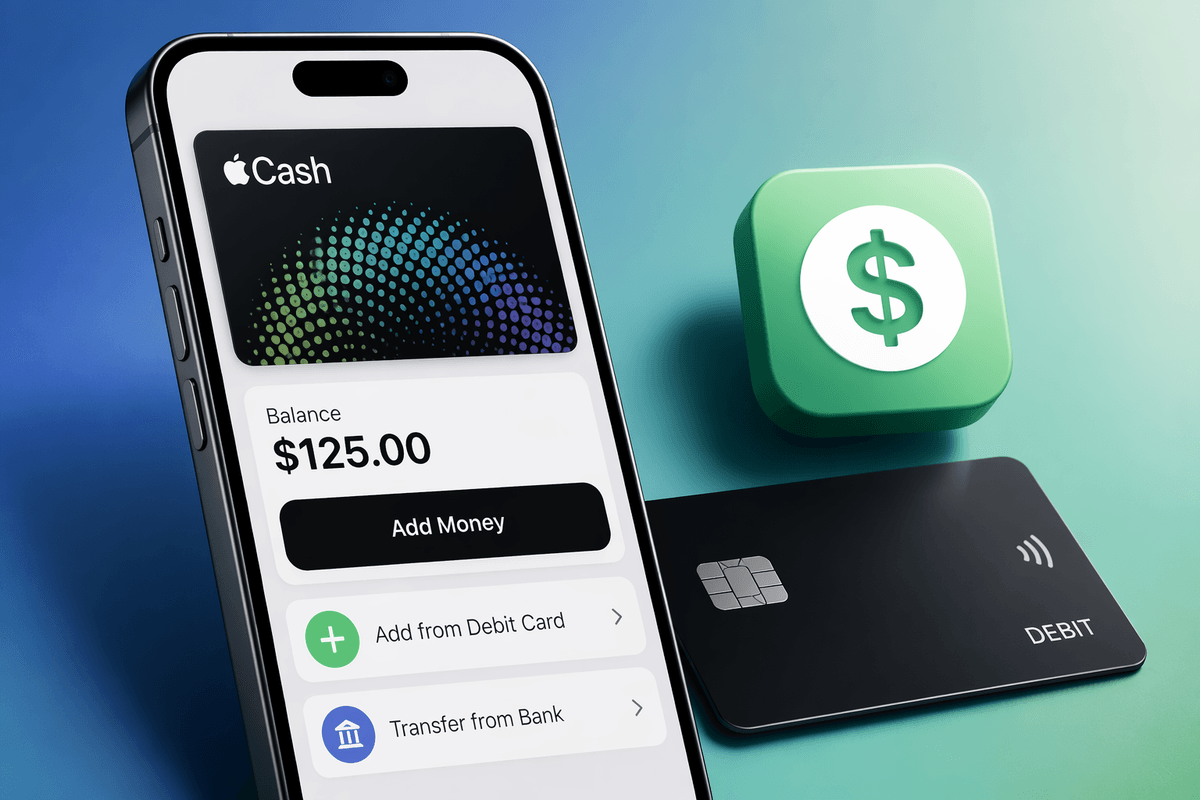
Most people add money to Apple Cash straight from an eligible debit card, and the steps are all in Wallet. Open the Wallet app, tap your Apple Cash card, then tap “Add Money.” Choose an amount (or enter your own), tap “Add,” and confirm with Face ID, Touch ID, or your passcode. If you have more than one card in Apple Pay, tap the payment card shown to switch to the debit card you want to use, then confirm again.
If “Add Money” is missing or grayed out, it usually comes down to setup or card eligibility. Make sure Apple Cash is fully set up (no pending verification prompts), and that you’re trying a debit card, not a credit card. Some bank-issued debit cards still won’t work for funding, even if they work for regular Apple Pay purchases. Also expect occasional limits on how much you can add at once, which can make a normal-looking top-up fail until you try a smaller amount.
Use a bank account transfer when you don’t want a card
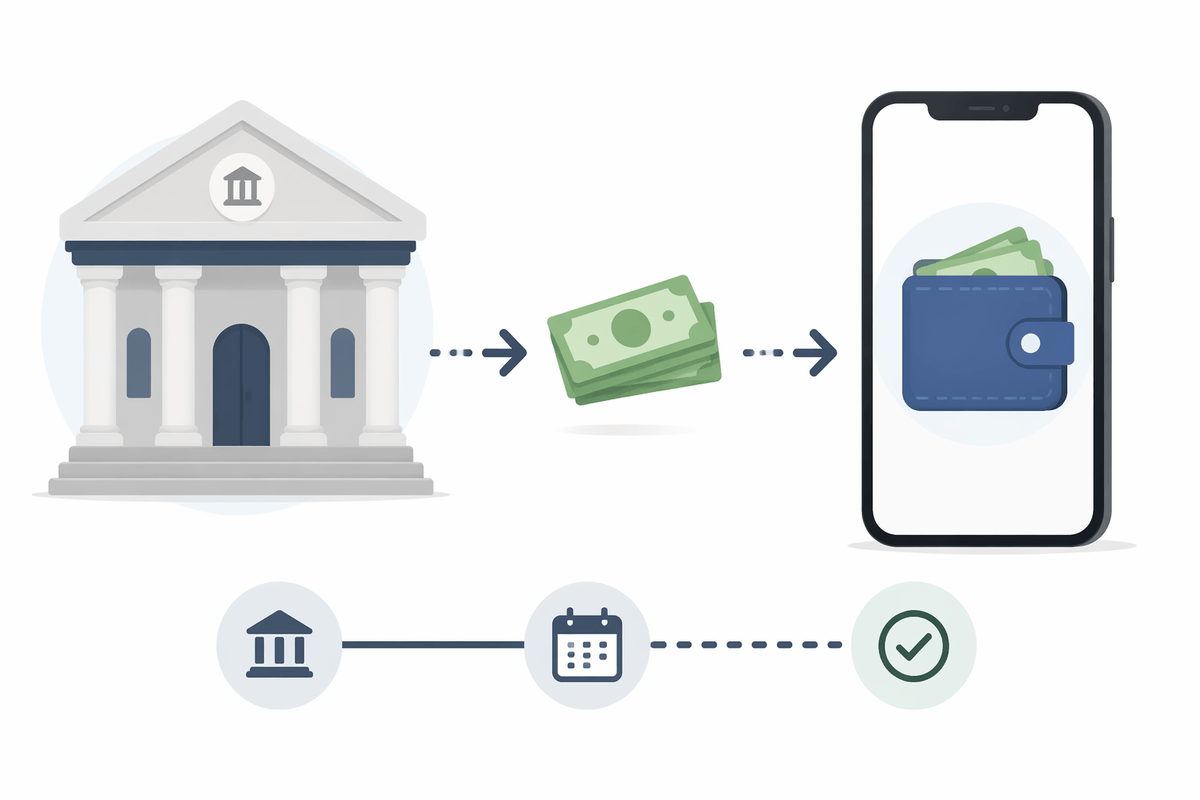
If you don’t want to use a debit card (or your card won’t fund Apple Cash), you can move money in from your bank account instead. In Wallet, tap Apple Cash, tap the More button, then look for options like “Bank Transfer,” “Add Bank Account,” or “Transfer to Bank” (wording can vary by iOS version). If you see “Add Bank Account,” link your bank using your routing and account number, then follow the verification prompts—some banks do instant verification, others take a day or two with small test deposits.
Bank transfers are usually not instant, so they’re a better fit for planned budgeting than a last-minute payment. If the bank option doesn’t appear, it’s often because Apple Cash isn’t fully set up, identity verification is still pending, or your Apple ID region or device settings don’t qualify. Also double-check you’re signed into the same Apple ID on the device where Apple Cash is enabled.
Fund your Apple Cash by receiving money from others
A lot of people “add money” to Apple Cash simply by having someone send it to them. In Messages, open a conversation, tap the Apple Pay button, enter the amount, and send. When you receive Apple Cash, it typically lands in your Apple Cash balance automatically, which is perfect for reimbursements, splitting rent, or keeping group-trip money separate from your bank account.
If you’re the one requesting funds, use the same Apple Pay button in Messages and choose Request instead of Send. The other person can pay from their Apple Cash balance, an eligible debit card, or a bank account transfer (depending on what they’ve set up). A practical constraint: both people need Apple Cash available on their accounts, and the payment can fail if the sender’s card is ineligible, they haven’t finished identity verification, or their Apple ID region isn’t set to the United States.
Know the limits, fees, and common error messages
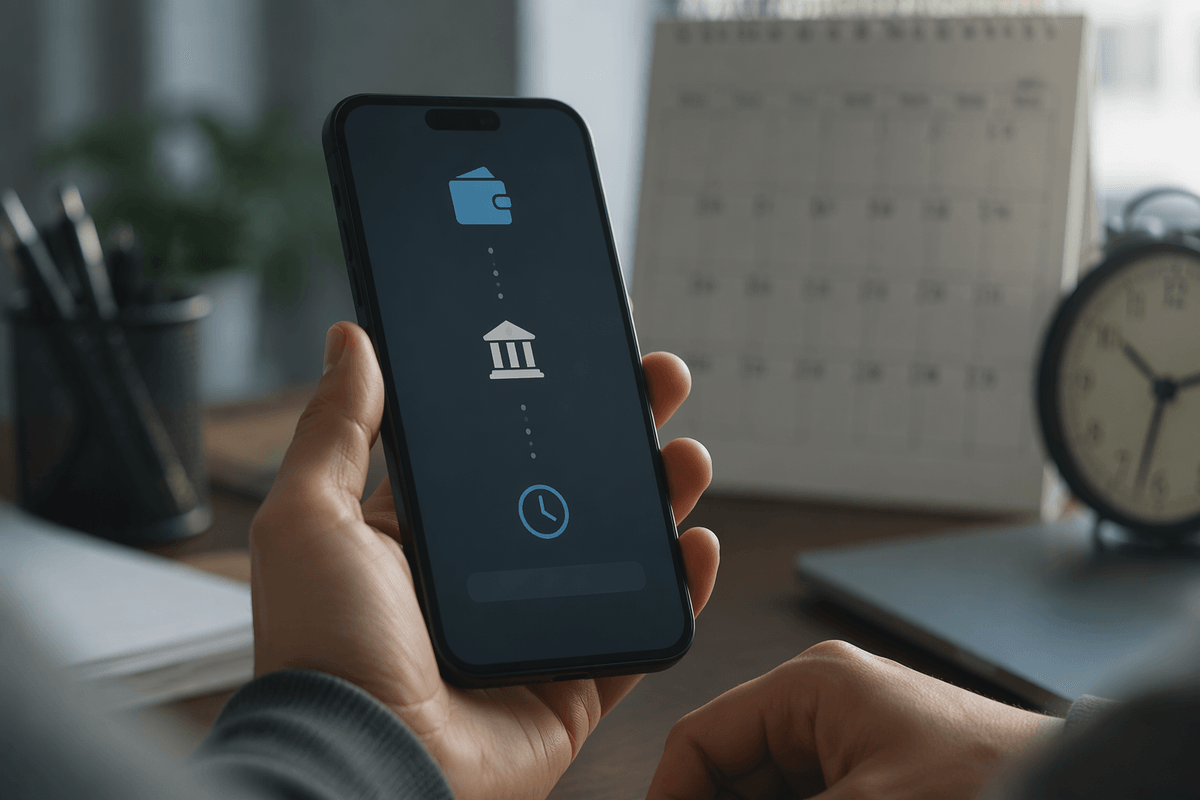
You’ll run into three practical “speed bumps” with Apple Cash: limits, fees, and verification. Limits can apply per transaction and over time, so a top-up that looks normal can fail until you try a smaller amount. Bank transfers add another constraint: linking or verifying a bank account can take time, and even after it’s linked, transfers aren’t always immediate—plan for delays if you need the balance for a same-day payment.
Fees depend on the action. Adding money from an eligible debit card is typically treated as a standard load, while certain “instant” transfer options (when available) may include a fee, and some banks can charge their own fees on transfers. Common messages to watch for include “Add Money unavailable,” “Verification required,” “Card not supported,” and generic “Transfer failed.” When you see them, the fastest fixes are usually: confirm your Apple ID region is the United States, finish any identity verification prompts in Wallet, switch to a different debit card, or reduce the amount and try again.
Confirm the money arrived and keep your balance safe
After you add money, confirm it landed before you rely on it. In Wallet, tap your Apple Cash card and check the balance at the top, then scroll your recent transactions to find the “Add Money,” “Bank Transfer,” or incoming payment entry with the amount you expected. If you don’t see it yet, wait a few minutes and check again—bank transfers and some verifications can add delay. If a transaction shows “Pending” for an unusually long time, back out, reopen Wallet, and make sure you’re signed into the correct Apple ID on that iPhone.
To keep your balance safe, treat Apple Cash like cash: keep Face ID/Touch ID and your passcode enabled, and don’t share devices that can approve Wallet transactions. Turn on Apple ID two-factor authentication, keep iOS updated, and review your Apple Cash transactions occasionally so you catch an unexpected charge while it’s still easy to report.
A quick checklist for the fastest successful top-up
If you want the fastest top-up, do a quick pass through this list: confirm your Apple ID region is set to the United States and Apple Cash setup has no pending “Verification required” prompts. Open Wallet > Apple Cash and look for “Add Money”; if it’s missing, restart the iPhone and re-check Wallet settings under your Apple ID. Use an eligible debit card (not a credit card), and switch cards if you see “Card not supported.” If an amount fails, try a smaller number. If you can’t use a card, start a bank transfer early—linking and transfer timing can take days.