Why Discord on console feels different than party chat
If you’re used to console party chat, Discord on PS5 and Xbox can feel a little “indirect.” Party chat is built into the console, so you create a party and you’re talking. Discord voice usually starts in Discord (on your phone or PC), then you join or “transfer” that voice session to your console, and the steps look different depending on Xbox vs PS5.
The other big difference is audio routing. Party chat mixes cleanly with game audio by default, but Discord can land in the wrong place (TV speakers, headset only, low volume, or a quiet mic) until you set the right output, mix, and permissions. It works well once it’s dialed in, but it takes a few minutes up front.
Before you start: versions, accounts, and needed hardware
You’ve probably seen the “I don’t have Discord on my console” problem—it’s usually just a versions or account issue. Update your console system software, and make sure your Discord mobile app is current, since you’ll use it for linking and for joining a voice channel before moving it to the console. You need a Discord account plus the console profile you actually play on (PSN on PS5, or your Xbox profile) ready to link.
Hardware is simple: you’ll want a headset with a mic if you don’t want voice coming through the TV, and wireless headsets should be fully paired before you start. Also check that your console privacy/communications settings allow voice chat, or the transfer/join options may not appear.
Linking Discord to PlayStation Network and Xbox profiles
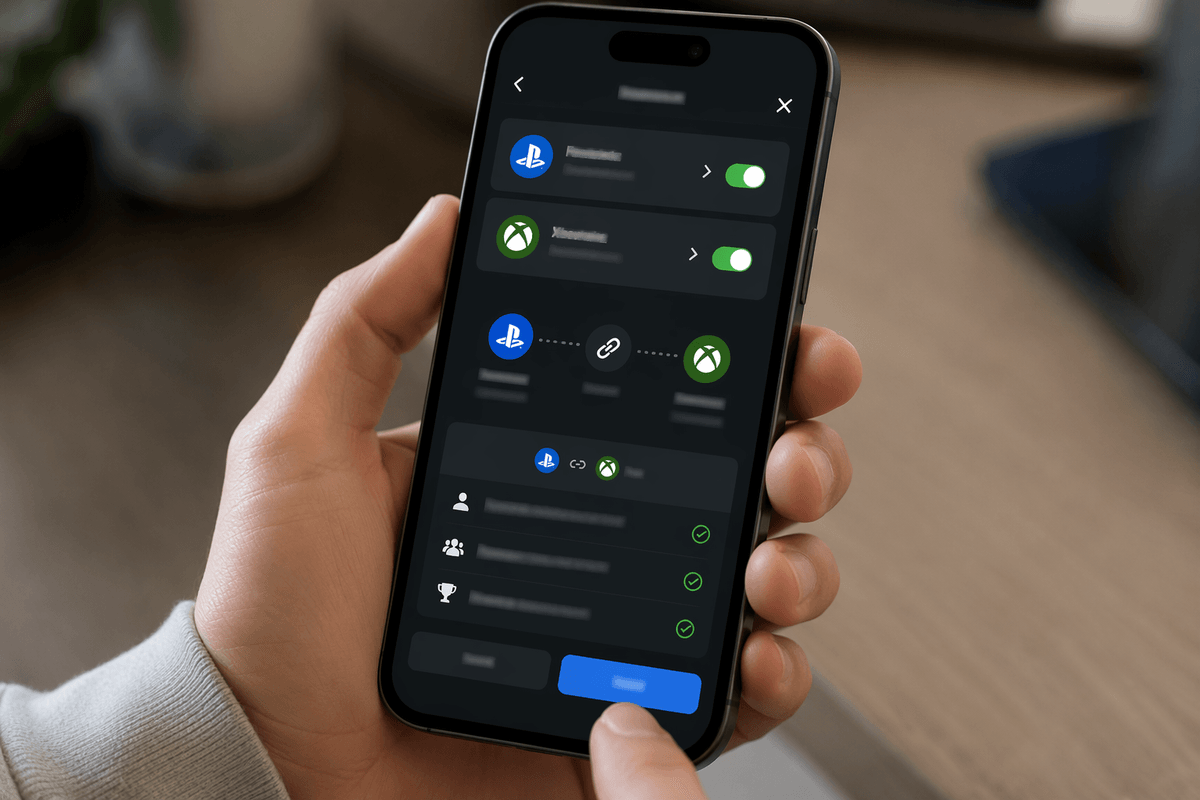
Most “Discord won’t show up on console” issues start with linking. Open the Discord mobile app, go to Settings, then Connections, and choose PlayStation Network or Xbox. Sign in to the same PSN/Xbox profile you actually play on, and approve the permissions—if you link a secondary profile by accident, the transfer options will be missing later.
On Xbox, also check your console’s Linked social accounts (or the Discord section in settings, if you see it) and confirm the connection is listed. On PS5, the link mostly lives in Discord, so don’t worry if the console menu looks sparse. If sign-in loops or fails, disable ad blockers on your phone and try the in-app browser again.
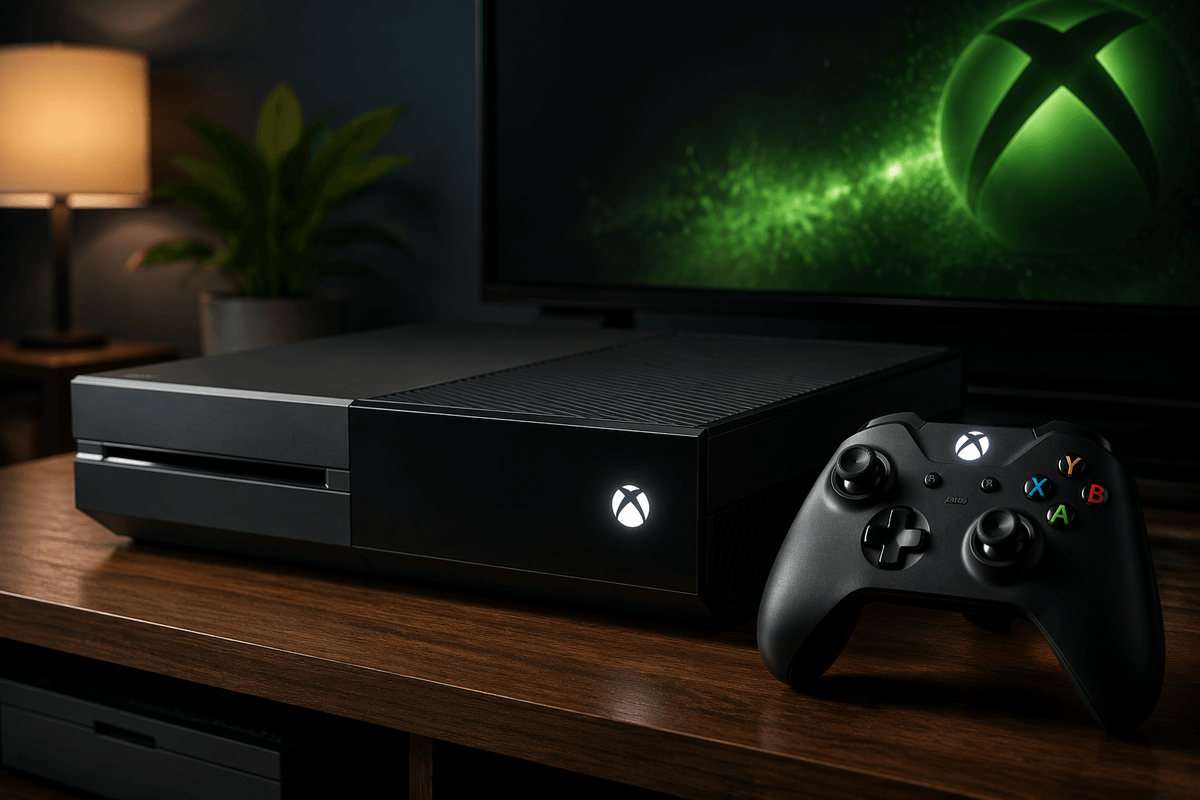
Xbox Series X/S setup: joining and switching Discord voice fast
You’ll usually join Discord voice on Xbox from the Discord mobile app, then move it onto the console. In Discord, open the server and voice channel (or the DM call), join it, then tap the console/Xbox option (often shown as “Transfer to Xbox” or “Join on Xbox”). Your Xbox will pop a prompt—accept it, choose the right headset, and you’re in, with Discord voice mixed into your console audio.
When you want to switch channels fast, do the switch in Discord first, then transfer again. It’s quicker than backing out on the console side. If the transfer button isn’t there, the usual causes are: you’re signed into the wrong Xbox profile in Discord Connections, your phone Discord app is outdated, or your Xbox privacy/communications settings are blocking voice. Fix those, then try the transfer again.
PS5 setup: getting Discord voice into your console audio
On PS5, the key step is getting a voice session started in Discord first, then pushing it to the console so it lands in your headset mix instead of your phone speaker. Open Discord on your phone, join the voice channel (or start the DM call), then look for the PlayStation/PS5 option like “Transfer to PlayStation” or “Join on PlayStation.” Your PS5 should throw a prompt—accept it, and you’ll see Discord voice show up as a separate voice chat session while you stay in your game.
If you can hear Discord but it’s coming from the TV (or you can’t hear it at all), go to PS5 Settings > Sound > Audio Output and confirm your headset is the Output Device. Then check Sound > Microphone to make sure the right mic is selected and not muted at the headset. A common limitation: you may need to re-transfer from the phone when switching to a different Discord channel, and it’s slower if your phone and console aren’t on the same stable network.
Make it sound right: mic levels, mix, and controls
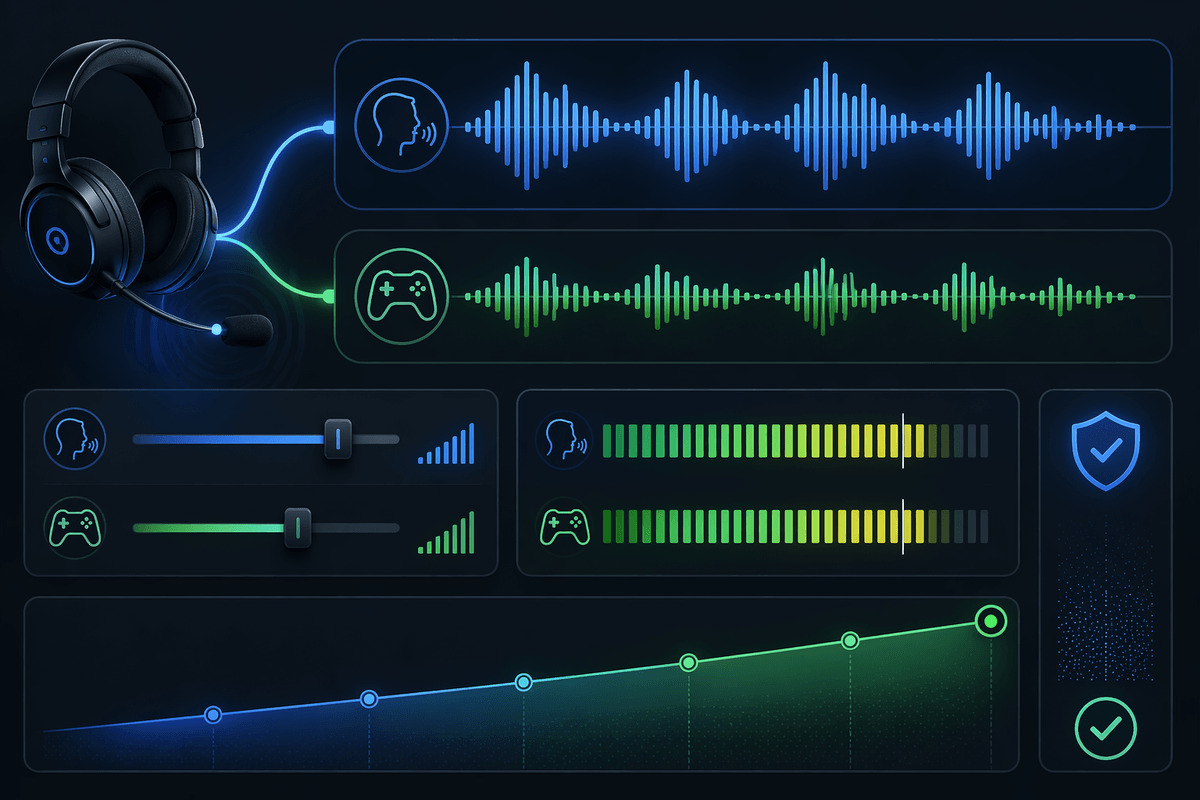
You’ll notice Discord voice is usually “fine” but not balanced until you set two things: your mic level and your chat/game mix. On Xbox, open the Guide > Audio & music and adjust Headset mic monitoring (so you’re not shouting) and the Chat mixer until voices sit just above game audio. On PS5, go to Settings > Sound > Microphone and run Adjust Microphone Level, then use the Control Center sound/voice controls to shift the balance if the game is swallowing people’s voices.
Do a quick real-world check: talk while shooting/revving/ulting—if teammates say you cut out, you’re probably too quiet or your headset mic is brushing your collar. Also watch for the practical constraint: “Boost” settings can add hiss, so raise the mic gradually and use mix controls before maxing gain.
When it won’t connect: the fixes that usually work
You’ll usually hit one of three walls: the transfer button doesn’t show, the console prompt never appears, or audio connects but nobody can hear you. First, confirm the basics: your Discord app is updated, you linked the same PSN/Xbox profile you’re currently playing on, and your console communications/privacy settings allow voice. If you see a “connecting” loop, fully quit Discord on your phone, toggle Wi‑Fi off/on (or switch between Wi‑Fi and mobile data), then try the transfer again.
If the prompt won’t pop on the console, restart the console (not just sleep), and sign out/in on the console profile once. If you can hear them but they can’t hear you, double-check the selected microphone on PS5/Xbox and any headset mute switch. One real limitation: shaky home Wi‑Fi can make transfers fail even when regular gameplay feels fine.
A quick “best setup” checklist for regular use
For daily use, keep it simple: update console system software and the Discord mobile app, then confirm Discord is linked to the exact PSN/Xbox profile you play on. Start the call in Discord (voice channel or DM), then Transfer/Join on your console and accept the on-screen prompt.
Set audio once: choose your headset as Output Device, select the correct microphone, and run the console mic level test. Adjust chat/game mix so voices sit slightly above the game, and avoid maxing mic boost unless you need it (it can add hiss).
When it flakes out, assume network first: restart phone Discord, toggle Wi‑Fi, then do a full console restart and try the transfer again.